Getting Started 1/6 — A Tour of Your Dashboard
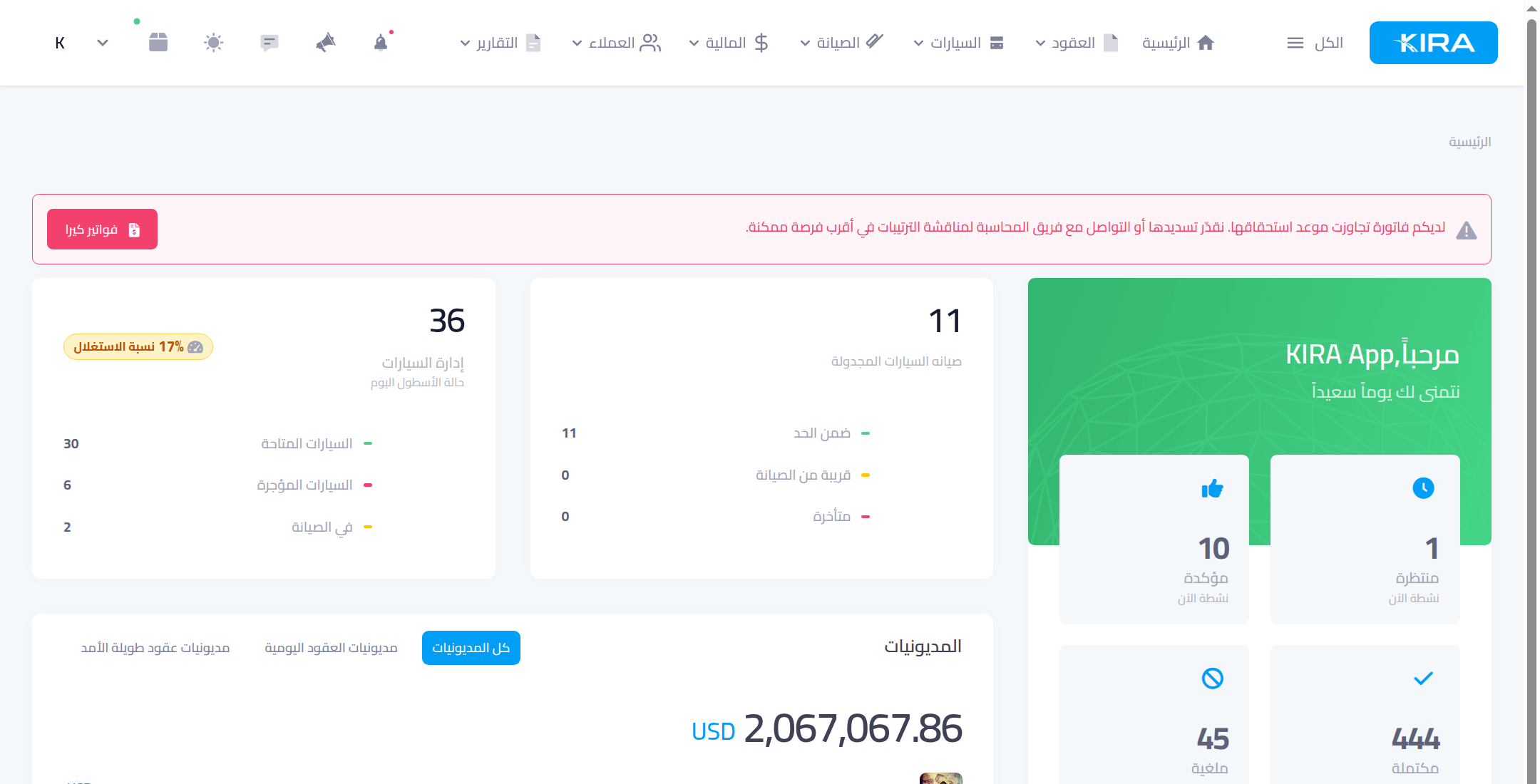
The first thing you see in KIRA: booking KPIs, today's fleet status, the follow-up board that sorts your tasks by urgency, debts and business performance — learn every section and where to find it.
🚀 Getting Started Series — Part 1 of 6 · Stage: Orientation · Full series index
🚀 Guide map — set your company up in 6 parts
This series takes a brand-new company from the first login to a fully-configured account: understand your dashboard, complete your identity, create branches, add staff with the right permissions, set up your money accounts, and control your subscription. After it, move on to the contracts guide.
- A Tour of Your Dashboard (Orientation)
- Your Company Identity and Settings (Setup)
- Create Your Branches (Setup)
- Add Your Staff and Set Their Permissions (Setup)
- Set Up Your Cash Boxes and Bank Accounts (Setup)
- Your Plan, Subscriptions and Add-ons (Subscription)
Then continue with the Contracts Guide (9 parts).
What you will learn
- Read the home page: booking KPIs, fleet status, debts and business performance.
- Use the follow-up board as your daily task list.
- Navigate the top menu to reach any section.
The top menu — your gateway
At the top of every page: Home · Contracts · Cars · Maintenance · Finance · Customers · Reports — each opens its sub-sections. The “All” button lists every section in one place when you're not sure where something lives.
Read your home page
- Booking KPIs: pending · confirmed (active now) · completed · cancelled — with all-time totals and a bookings trend versus last month.
- Fleet status today: available, rented and in-maintenance cars, with the utilization rate — how much of your fleet is actually earning.
- Scheduled car maintenance: within limit, due soon, or overdue.
- Debts: the total your customers owe, tabbed: all debts / daily-contract debts / long-term contract debts.
- Business performance: today's, this week's and this month's revenue with a monthly chart, plus a bookings tab.
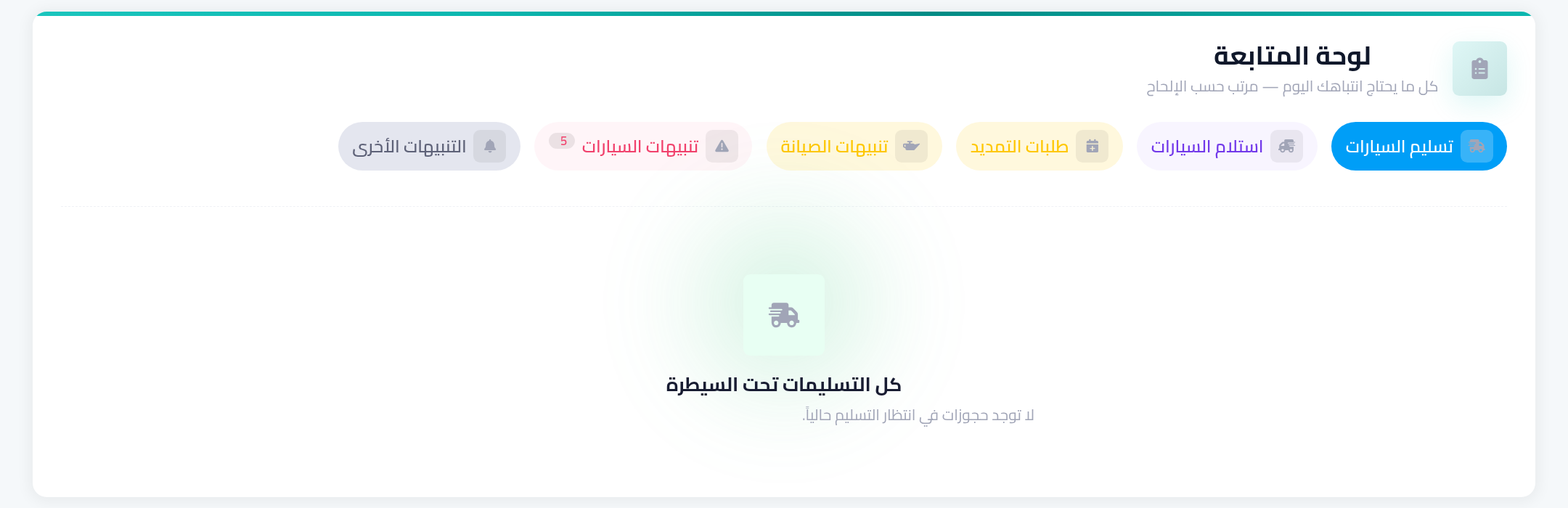
The follow-up board — tasks sorted by urgency
The most operational section: the follow-up board collects “everything that needs your attention today — sorted by urgency” in six tabs:
- Car handovers: today's bookings awaiting delivery.
- Car returns: cars due back.
- Extension requests awaiting your decision.
- Maintenance alerts: cars approaching service.
- Car alerts: documents, insurance and inspections about to expire.
- Other notifications.
Each tab carries a counter, and an “urgent” badge marks the overdue — always start your day here.
Starter tips
- Make the follow-up board a morning habit: its six tabs replace hopping between pages.
- Watch the utilization rate: consistently low = idle cars earning nothing; always high = consider growing the fleet.
- Numbers update automatically from your contracts, cars and payments — accurate input means trustworthy indicators.
⬅ Next in the series: Part 2: Your Company Identity and Settings