Contracts Guide 7/9 — Extend the Contract Without Creating a New One
Customer wants the car longer? Extend from one button: set the duration or the new date, customise the price if needed, and the extension value is added as its own debt in the contract ledger.
📄 Contracts Guide Series — Part 7 of 9 · Stage: Operation · Full series index
What you will learn
- Extend an active contract by duration or to a specific date.
- Customise the daily or total price for the extension period.
- Where the extension value appears in the contract's finances.
Step 1: Open the extension window
From the contract page press the orange “Extension” button:
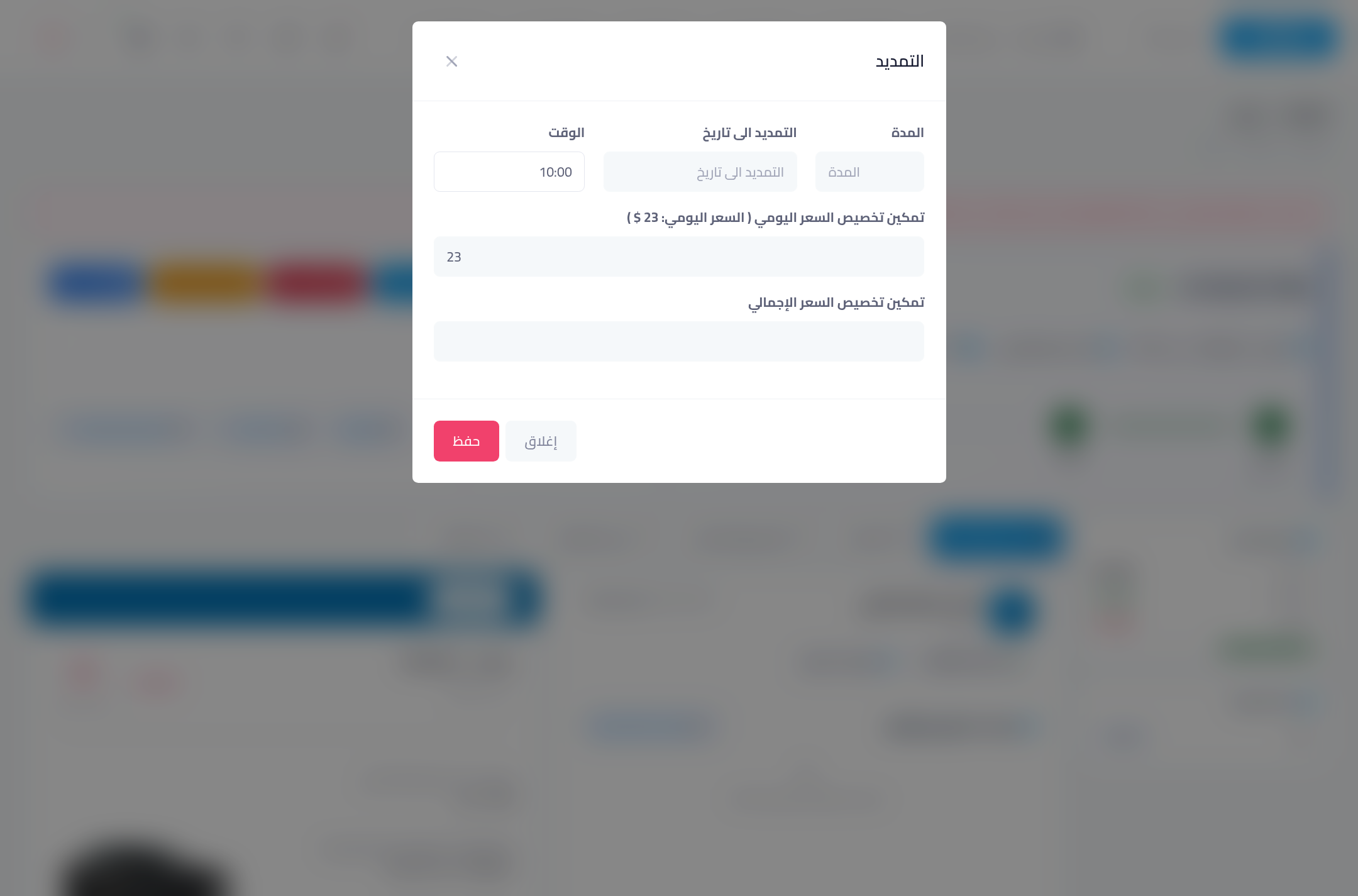
Step 2: Set the period and its price
- Duration: enter the number of extra days, or pick “extend to date” with a time — whichever is easier.
- Enable daily-price customisation: the window shows the contract's current daily price; enter a different one for the extension days only.
- Enable total-price customisation: or set one lump amount for the whole extension.
Press “Save” — the contract end date moves and the extension days appear in its details.
Where does the extension value appear?
The extension is recorded as its own debt in the “Finance” tab — separate from the base contract value — keeping the ledger clear: base value + extensions + payments, with “remaining” updated automatically. Collect extension payments like any payment (see part 5).
Common mistakes
- Creating a new contract instead of extending: it fragments the customer's history and shows the car “available” between the two contracts. Always extend the same continuous rental.
- A verbal extension with nothing recorded: an expired contract with the car still out shows as overdue in your reports, and the extra days' value stays outside the debts.
- Not agreeing the extension price: if it differs from the contract price, document it in the price-customisation field at extension time.
⬅ Next in the series: Part 8: Receive the Car Back and Close the Contract
Previous: Part 6 — Discounts and the Receipt Voucher · Series index