Contracts Guide 8/9 — Receive the Car Back and Close the Contract
At return: document the condition with photos, record odometer and fuel so differences are computed automatically, add any new damage, and settle the remainder to close the contract as completed.
📄 Contracts Guide Series — Part 8 of 9 · Stage: Closing · Full series index
What you will learn
- Document the car's condition at return and compare it with handover.
- Compute extra-kilometre and extra-hour differences automatically.
- Settle the remainder and complete the contract.
Step 1: Open the return window
After handover, the contract page shows a “Receive car” button. Press it when the car comes back:
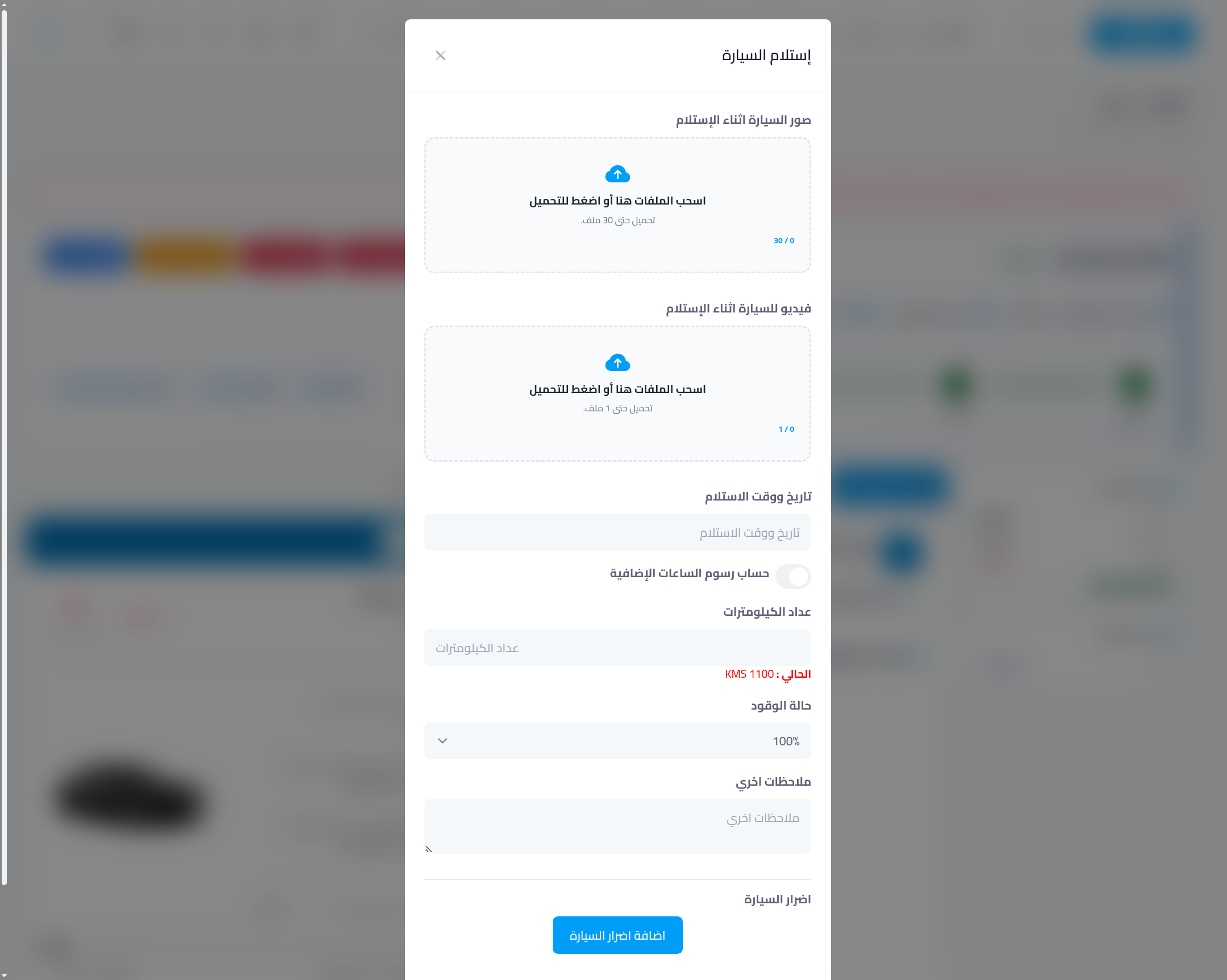
Step 2: Document the return condition
- Car photos at return (up to 30) and a video — from the same angles you shot at handover for easy comparison.
- Actual return date & time.
- Extra-hours fee: enable this switch if the customer returned late and you want the delay charged.
- Odometer: enter the return reading (the handover reading is shown for comparison). If the customer exceeded the allowed kilometres, the system charges the excess per the car's rate.
- Fuel level: record the return percentage — a drop below handover level is your basis to charge the fuel difference.
- Car damages: record any new damage not documented at handover via “add car damages”.
Then “Save” — the contract moves to “received” and the return condition appears on the e-contract opposite the handover condition.
Step 3: Settle and complete
Open the “Finance” tab: review the remainder after any differences (kilometres, fuel, delay, damage), and record the final payment. After settlement, complete the contract — it moves to “completed” at the end of the timeline, and the car becomes bookable again immediately.
Common mistakes
- Return with no photos: return photos are the second half of the comparison — without them you lose proof of new damage.
- Unrecorded odometer or fuel: without them the system cannot compute kilometre or fuel differences, and you lose earned fees.
- Leaving the contract open after return: complete it after settlement so your reports stay clean and the car shows as available.
⬅ Next in the series: Part 9: Cancel a Contract the Right Way
Previous: Part 7 — Extend the Contract Without Creating a New One · Series index