Advanced Accounting Guide 3/8 — Building Your Chart of Accounts
Understand KIRA's chart of accounts: the five main sections, hierarchical numbering, account natures, and how to add and organize accounts for clean, reliable reports.
📚 Advanced Accounting Guide — Part 3 of 8 · Stage: Setup & Foundation · Full series index
The chart of accounts is the backbone of any accounting system: it is the structure under which every financial transaction in your company is classified — from the value of a car you purchased, to a daily rental you collected, to an electricity bill you paid. Every journal entry, report, and account statement in KIRA relies on this tree, so building it correctly from day one means clean books and reliable reports for years to come.
In this guide you will learn the components of the chart of accounts in KIRA, how to read its hierarchical numbering, when to add a new account, and the guidelines that protect you from common mistakes.
Accessing the Chart of Accounts
From the main menu go to: Finance ← Advanced Accounting ← Chart of Accounts.
At the top of the page you will find counters that summarize the tree at a glance: the total number of accounts, plus counts for Assets, Liabilities, Equity, Revenues, and Expenses. A search field lets you quickly find any account by name or code — something you will appreciate as the tree grows.
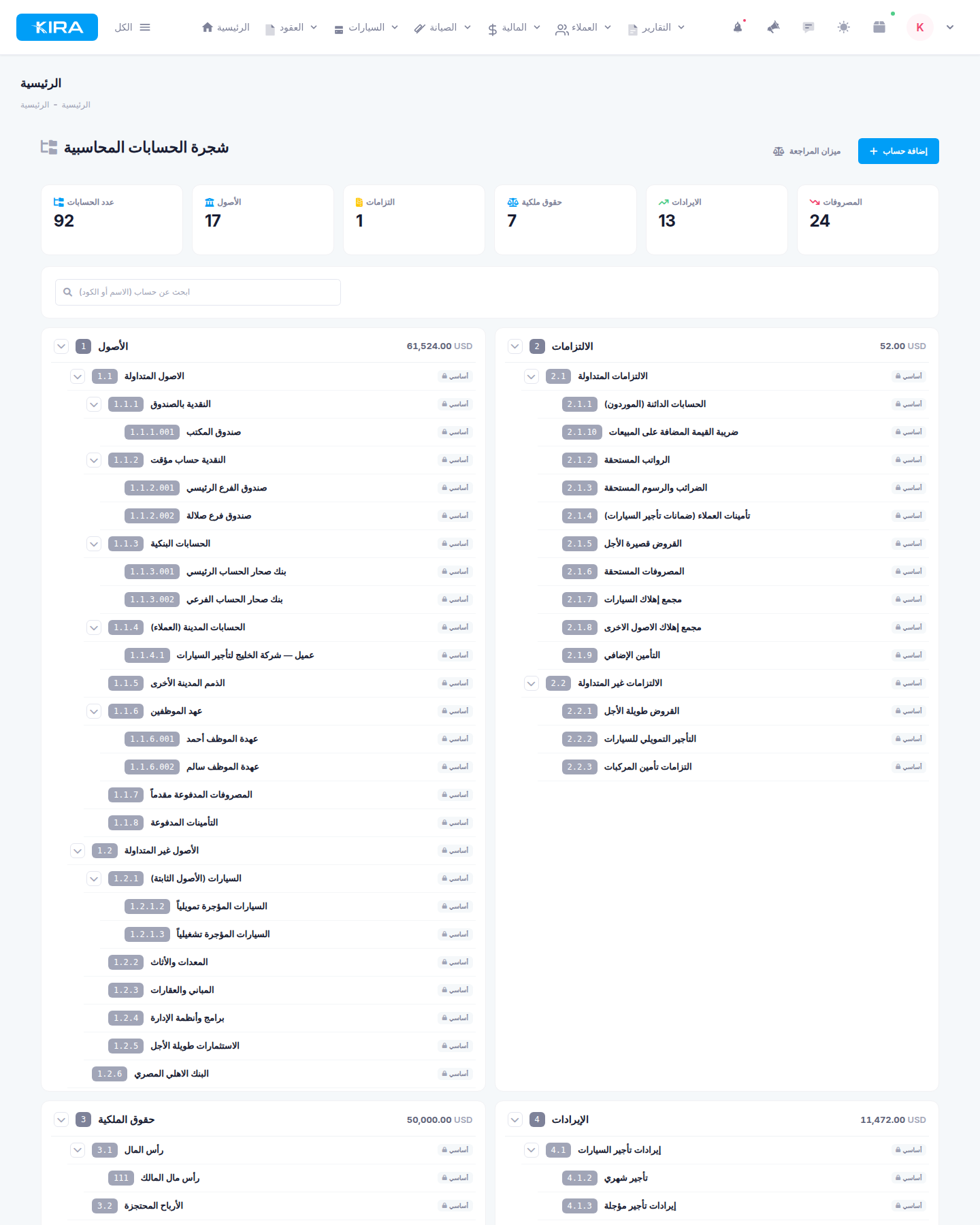
The full chart of accounts: top counters, the five main sections, and examples of sub-accounts such as branch cash boxes, employee custody accounts, and bank accounts.
The Five Main Sections and Hierarchical Numbering
The tree is divided into five fixed main sections, each with a root number that starts every account belonging to it:
| Number | Section | What it contains |
|---|---|---|
| 1 | Assets | What the company owns: cash, banks, cars, receivables |
| 2 | Liabilities | What the company owes: customer deposits, suppliers, loans |
| 3 | Equity | Capital and retained earnings |
| 4 | Revenues | Business income: daily and monthly rental revenue and more |
| 5 | Expenses | Operating costs: salaries, maintenance, rent |
Numbering works hierarchically: each sub-level adds a new segment to the parent account's code. A practical example:
- 1 — Assets (root)
- 1.1 — Current Assets
- 1.1.1 — Cash on Hand
- 1.1.1.001 — Office Cash Box
One look at any account's code instantly tells you its position in the tree and its accounting nature.
Account Nature: Debit or Credit?
- Assets and Expenses have a debit nature — their balance increases with debit entries. Buying a car or paying a salary increases the account on the debit side.
- Liabilities, Equity, and Revenues have a credit nature — their balance increases with credit entries. Collecting a rental of OMR 150, for example, increases the revenue account on the credit side.
The key point: KIRA's reports calculate balances according to the nature of the account's root. A sub-account inherits its nature from the main section it sits under — which is exactly why placing each account under the correct root matters so much.
The Default Template: Ready for Car Rental
You do not start from a blank page; your KIRA account comes with a default template designed specifically for car rental companies. It includes ready-made accounts such as Cars under fixed assets, Customer Deposits under liabilities, Monthly and Daily Rental Revenue, Accumulated Car Depreciation, and more.
Accounts that come from this template are marked "Core" and display a lock icon. These accounts cannot be deleted and their codes cannot be edited, because they form the base structure the rest of the system relies on. You can always build on top of them by adding sub-accounts underneath.
Step by Step: Adding a New Account
- Go to Finance ← Advanced Accounting ← Chart of Accounts.
- Click the "Add Account" button at the top of the page.
- Choose the parent account the new account will sit under — for example "Cash on Hand" if you are adding a cash box for a new branch.
- The sub-code is generated automatically under the parent's sequence — no manual numbering needed.
- Give the account a clear, specific name — "Salalah Branch Cash Box" is far better than "Cash Box 2".
- Save, and the account immediately appears in its place in the tree and in the selection lists when recording entries.
When Should You Add a New Account?
The simple rule: add a new account when you need independent tracking of a specific balance or category. Common examples in rental companies:
- A cash box per branch — to see each branch's cash separately.
- A new bank account — when opening an account at an additional bank.
- Employee custody — to track amounts handed to a specific employee and reconcile them later.
- A detailed expense category — such as separating car-wash costs from general maintenance if you want each shown independently in reports.
Conversely, if an item is rare and does not need standalone tracking, record it under an existing general account instead of inflating the tree.
Guidelines for a Healthy Tree
- Never duplicate an account for the same purpose. Two accounts like "Fuel Expense" and "Petrol" scatter your numbers so neither reflects the full picture. Search by name or code before adding.
- Place the account under the correct root. This is the most important rule: placing a revenue account under Expenses, for example, flips its sign in every report, because balances are computed by root nature.
- Do not overdo depth. Three to four levels are enough in the vast majority of cases. An overly deep tree makes picking the right account harder and increases errors.
- Name carefully. The labels you choose here are the same ones that appear in entries, reports, and account statements. A clear name today saves hours of review tomorrow.
Delete Protection: A Safety Valve for Your Books
KIRA prevents deleting any account linked to journal entries, bridge settings, or bank accounts. This is not an arbitrary restriction but deliberate protection for the integrity of your books: if an account with recorded entries were deleted, historical reports would break and balances would lose their meaning. If you find you cannot delete an account, the system is protecting existing data that depends on it.
Frequently Asked Questions
Can I edit or delete the core accounts that come with the template?
No. Accounts marked "Core" — shown with a lock icon — cannot be deleted and their codes cannot be edited. You can add sub-accounts under them for any detail you need.
Do I need to enter account codes manually?
No. When you click "Add Account" and choose a parent, the sub-code is generated automatically under the parent's sequence. Your only job is picking the right parent and writing a clear name.
I placed an account under the wrong section — why do its numbers appear reversed in reports?
Because reports compute balances by the root's nature: assets and expenses are debit; liabilities, equity, and revenues are credit. A revenue account placed under Expenses is treated as an expense, so its sign flips. Make sure each account sits under its correct root from the start.
How many levels of depth are recommended?
Three to four levels are usually enough — as in the example: 1 ← 1.1 ← 1.1.1 ← 1.1.1.001. Add more depth only when there is a genuine need for independent tracking.
Next in the series ➜ Part 4: Automatic Entries & Accounting Mapping
Previous: Part 2 — Getting Started · Series index