Advanced Accounting Guide 4/8 — Automatic Entries & Accounting Mapping
Learn how KIRA automatically generates journal entries from contracts, expenses, maintenance, fines, transfers, and depreciation — and how to configure per-type policies, review drafts, and bulk-post.
📚 Advanced Accounting Guide — Part 4 of 8 · Stage: Setup & Foundation · Full series index
If you handle accounting for a car rental company, you know the problem well: every operation — a new contract, a customer payment, a maintenance invoice, a traffic fine — has to be recorded twice: once operationally, and again as a journal entry in your books. That duplication costs time and invites errors.
KIRA's automatic journal entries solve this at the source: instead of entering everything twice, KIRA generates the journal entry automatically from the operation itself. Your role shifts from data entry to review and posting. This article covers which operations are included, how to enable and configure the feature, and how to run your daily review with confidence.
The idea behind automatic entries
Every paid operation in KIRA already carries the information needed to build a balanced double entry: amount, date, operation type, and the account the money moved from or to. With the accounting bridge enabled, KIRA uses this to create a debit/credit entry automatically, based on the accounts you configured in your chart of accounts.
A simple example: a paid maintenance invoice of OMR 45 from your bank account instantly produces a draft entry — debiting the maintenance expense account you configured, and crediting the bank account it was paid from. All you do is review and post.
Which operations are covered
- Contracts and their payments — rental contracts and amounts collected on them.
- Paid financial operations — cash expenses and income recorded in the finance section.
- Paid maintenance — maintenance requests that reached paid status.
- Traffic fines borne by the company — fines borne by the customer are instead recorded as a debt on the customer through their usual flow.
- Transfers between bank accounts — each transfer generates a bank-to-bank entry.
- Monthly car depreciation — for cars capitalized as assets in your books.
Enabling the feature and setting per-type policies
Go to: Finance ← Advanced Accounting ← Settings. At the top of the page you'll find the "Enable automatic journal entry creation" toggle.
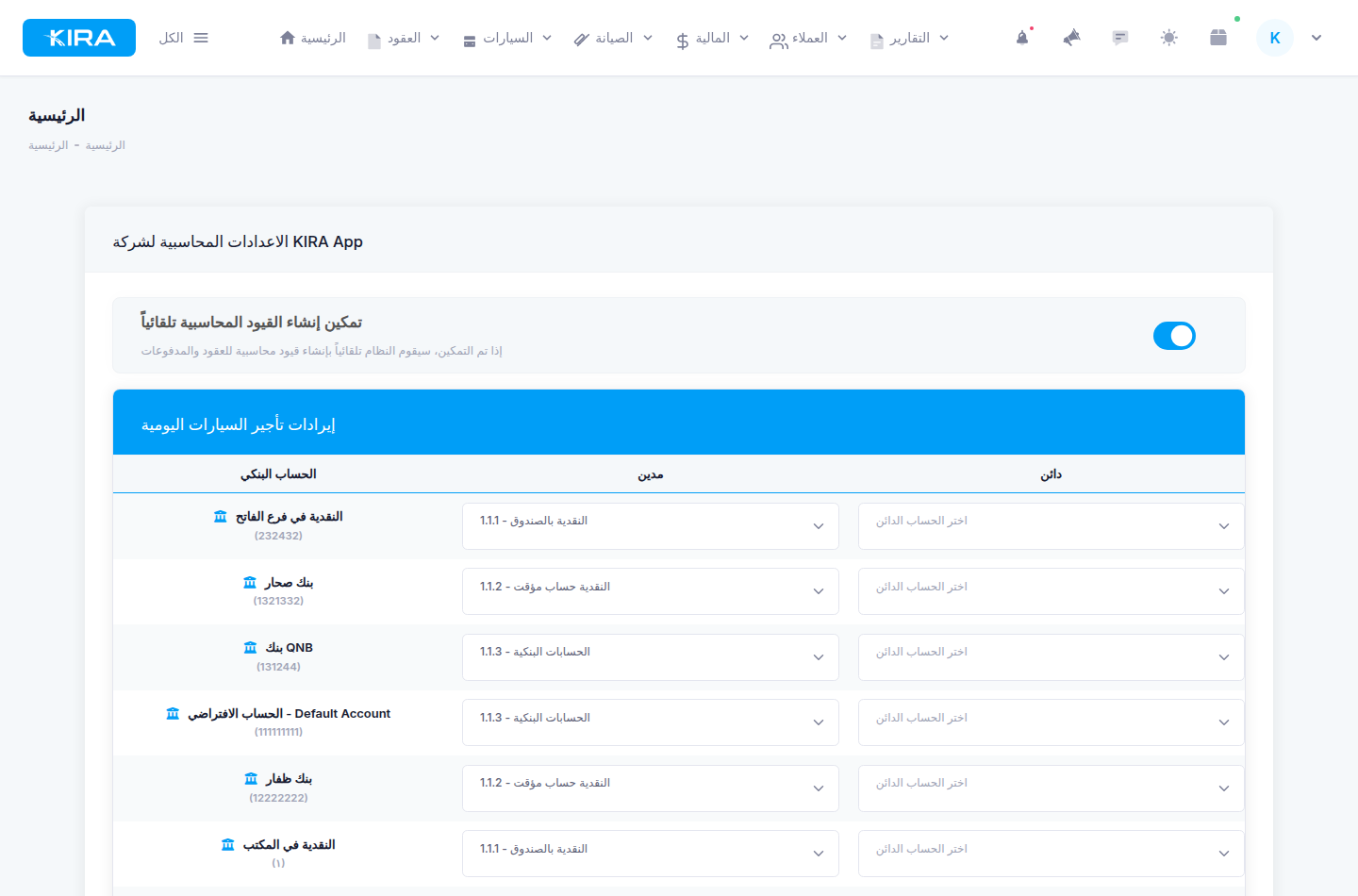
The settings page: the enable toggle at the top, and an operation-type card showing debit/credit accounts with bank account rows.
More important than the master toggle: each operation type has its own configurable policy, one of three options:
- Off — no automatic entry is created for that type.
- Draft — the entry is created as a draft awaiting your review. This is the default behavior: a draft never touches your reports until you review and post it.
- Auto-post — the entry is created and posted immediately.
Our advice: start with "Draft" for everything. Review the generated entries until you trust the account configuration, then gradually switch routine, repetitive types to auto-post.
Configuring the mapping: debit, credit, and bank accounts
On the same settings page, each operation type has a card where you set two things:
Debit and credit sides
Pick from your chart of accounts which account is debited and which is credited when an entry of this type is generated. This is the template KIRA builds every automatic entry from.
Bank account rows
Inside each card, "Bank account" rows link each of your banks/cashboxes to its account in the chart. The practical benefit: when an operation is paid from or to a specific bank, the cash side of the entry is routed automatically to that bank's exact account in your tree — no manual intervention needed.
Practical steps: daily review and bulk posting
- Open the entries page under Finance ← Advanced Accounting.
- Switch to the "Automatic entries" tab and filter by "Draft" status.
- Audit each entry: verify accounts and amounts against the source operation. Each automatic entry carries a badge indicating its source in the table (contract, maintenance, bank transfer...) and an auto-generated reference number.
- Select the entries you've reviewed.
- Run bulk posting — all selected entries land in your books at once.
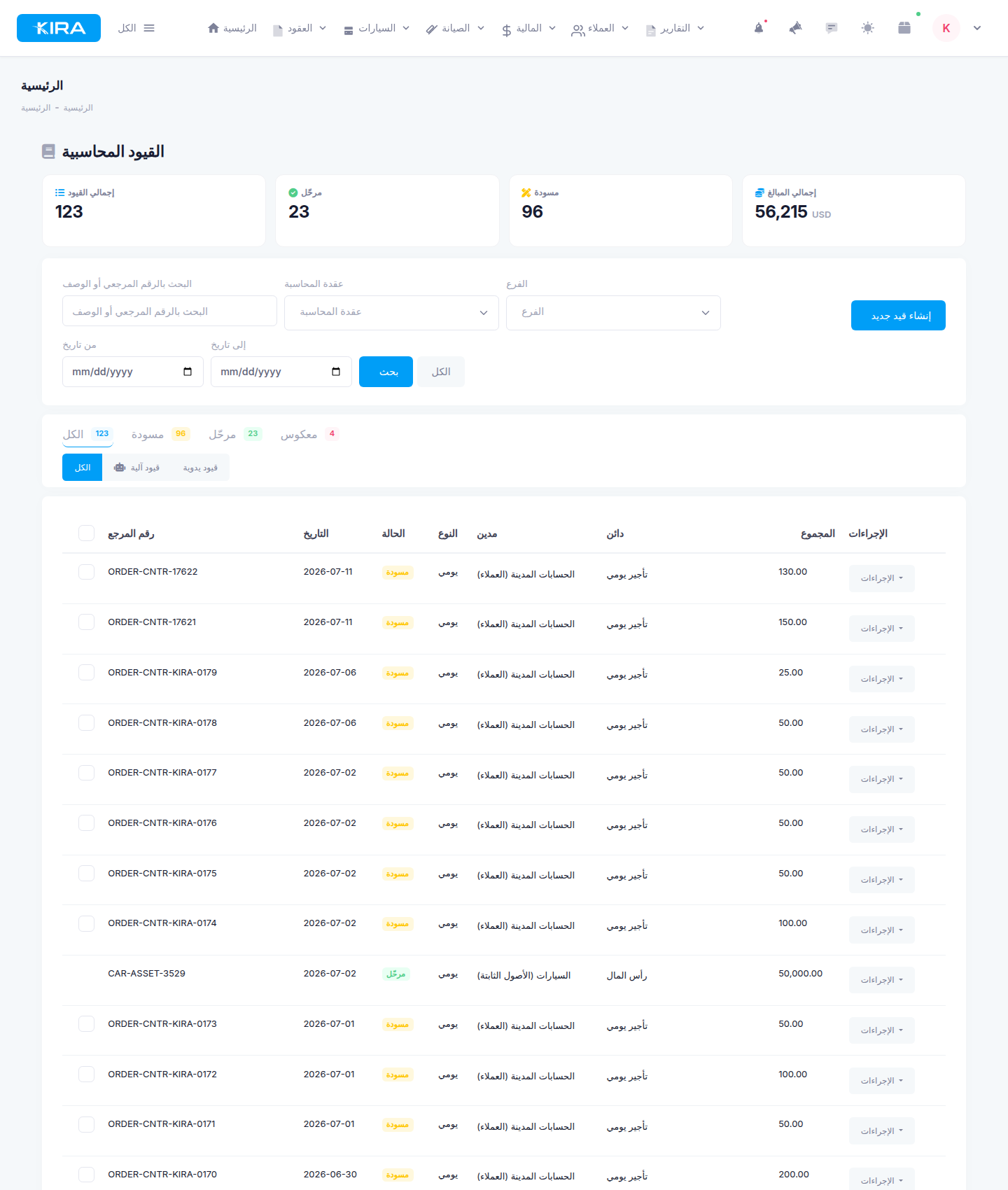
The "Automatic entries" tab: drafts generated from contracts with source badges, ready to select and bulk-post.
Editing or deleting an operation after its entry is posted
A core principle: a posted entry is never touched. Your ledger stays complete and auditable.
- Editing an operation whose entry was posted: KIRA creates a correction entry for the difference only, as a new draft you review. If an invoice changes from OMR 45 to OMR 50 after posting, a draft correction entry of OMR 5 appears.
- Deleting an operation with a posted entry: the system does not delete a posted entry automatically; it requires manual handling with a reversing entry, keeping the historical trail documented.
Frequently asked questions
Do automatic entries affect my reports as soon as they're created?
No — as long as the type's policy is "Draft". A draft never enters any report until you review and post it. Only types set to auto-post reach your reports directly.
How do I tell an automatic entry apart from a manual one?
Automatic entries carry a clear source badge in the entries table, and their reference numbers are auto-generated. You can also list them all under the "Automatic entries" tab.
A customer paid a traffic fine — why is there no automatic entry?
By design: the bridge only generates entries for fines borne by the company. Customer-borne fines are recorded as a debt on the customer through their usual flow.
Can I enable auto-post for just one type?
Yes. The policy is set per operation type. You can keep contracts on "Draft" for manual review, set bank transfers to auto-post, and turn another type off entirely — whatever fits your workflow.
Next in the series ➜ Part 5: Creating & Managing Journal Entries
Previous: Part 3 — Building Your Chart of Accounts · Series index