KIRA TV Guide — A Smart Display Screen for Your Rental Office
Everything you need to activate and use KIRA TV: a customer-facing Cars Showcase and a staff Operations Board — pairing steps, management and settings.
📺 What is KIRA TV?
KIRA TV is a new KIRA product: an app you install on a Smart TV in your office so it runs 24/7 as a wall display that shows your company information automatically and refreshes every few seconds — with no remote and no staff input needed. It is designed to be read from 3–4 metres away in bright KIRA colours.
When you pair a screen you pick one of two modes: a Cars Showcase (customer-facing, at reception) or an Operations Board (for staff in the back office).
Why use KIRA TV?
- A professional customer window: show your available cars with photos, prices and a booking QR code right on the reception screen.
- Live operations at a glance: today's deliveries and returns, a live fleet map, document & maintenance alerts, and staff performance — all in front of your team.
- Fully automatic: a passive screen that refreshes about every 30 seconds and rotates through scenes on its own — no manual operation.
- Instant celebration: when a car is delivered, returned, or a maintenance job is finished, a celebration cue appears to motivate the team.
- Per branch: scope each screen to a specific branch or to the whole company.
The two modes
1) Cars Showcase — customer-facing 🚗
Ideal for a reception screen facing customers. It shows your currently-available cars attractively, alternating between a featured car card and a grid of available cars:
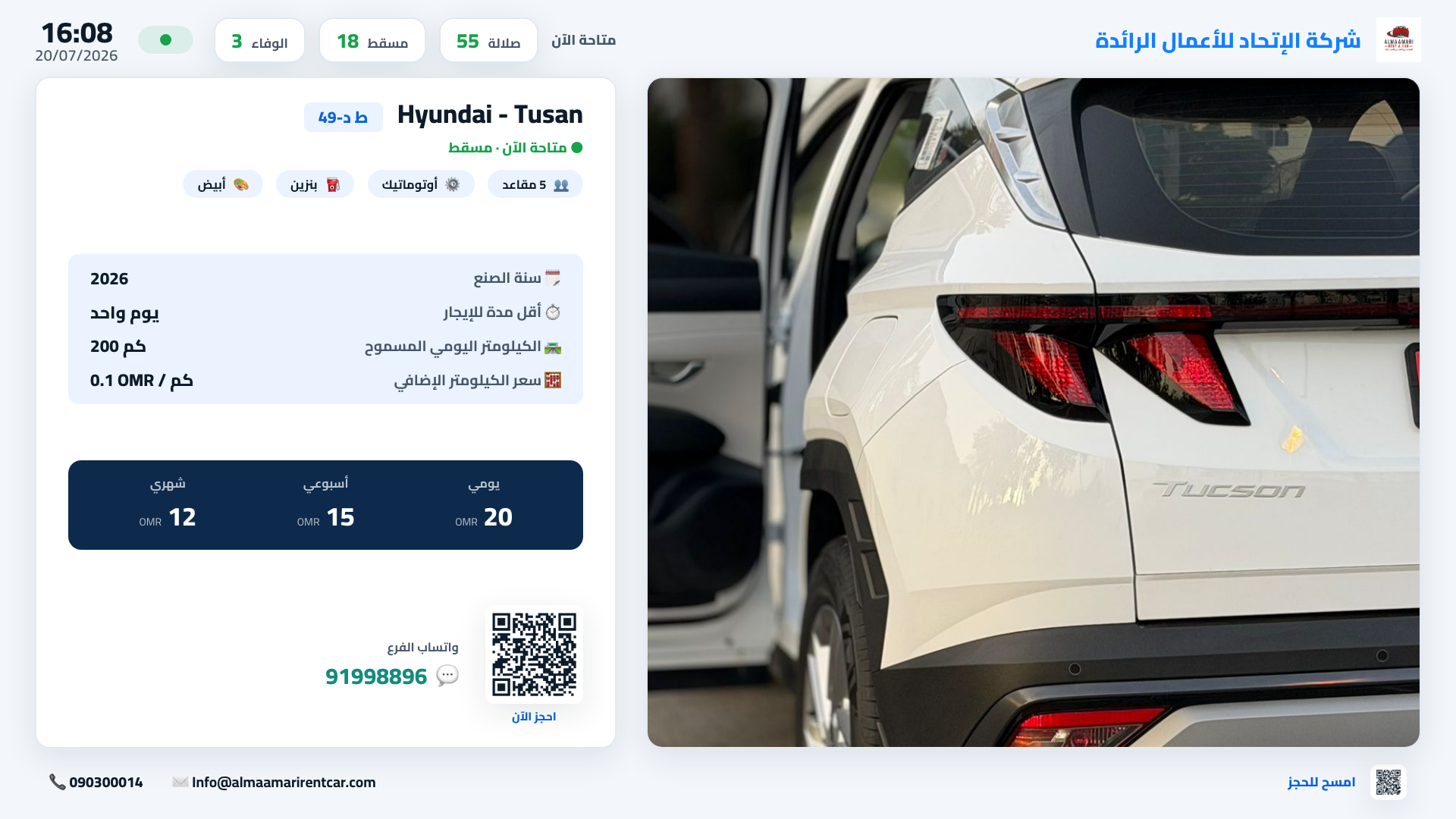
Featured card: a large car photo + specs + a price bar (daily / weekly / monthly) + a QR code and branch WhatsApp for booking.
Then it moves to a grid showing several available cars at once, each with its photo, price and booking QR:
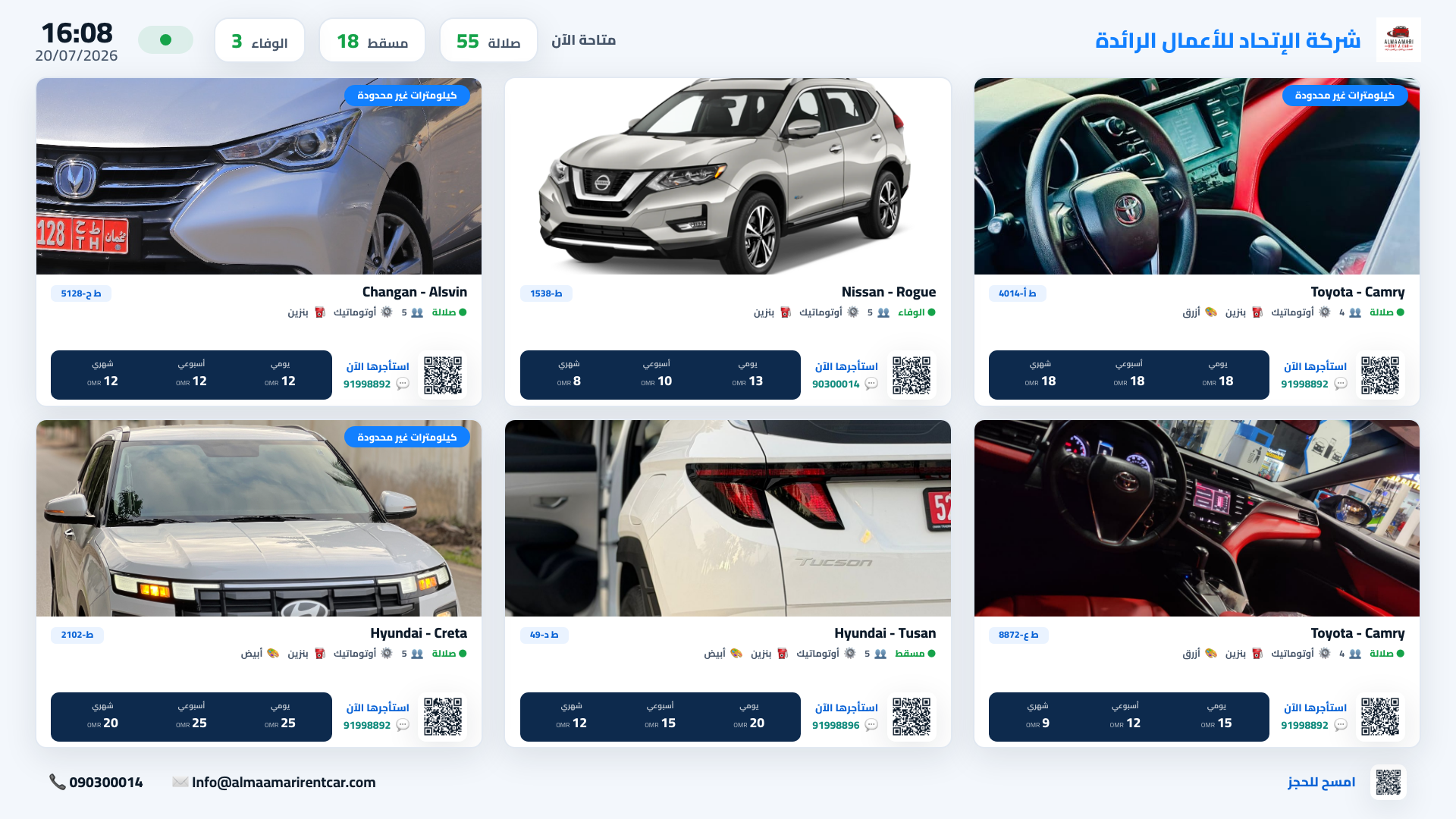
The available-cars grid: several cars shown together with photos, prices and "Rent it now" buttons.
Note: this mode shows car and price data only (no customer data), so it is completely safe to display in public at reception. The app automatically shows only genuinely-available cars and hides duplicates of the same model & year.
2) Operations Board — for staff 📊
Ideal for the back office (staff area). It rotates automatically through five scenes, with a top KPI bar (today's collected, receipts, deliveries, bookings) and a moving alerts ticker at the bottom:
Today's Movement: today's deliveries and returns with a live countdown for each appointment.
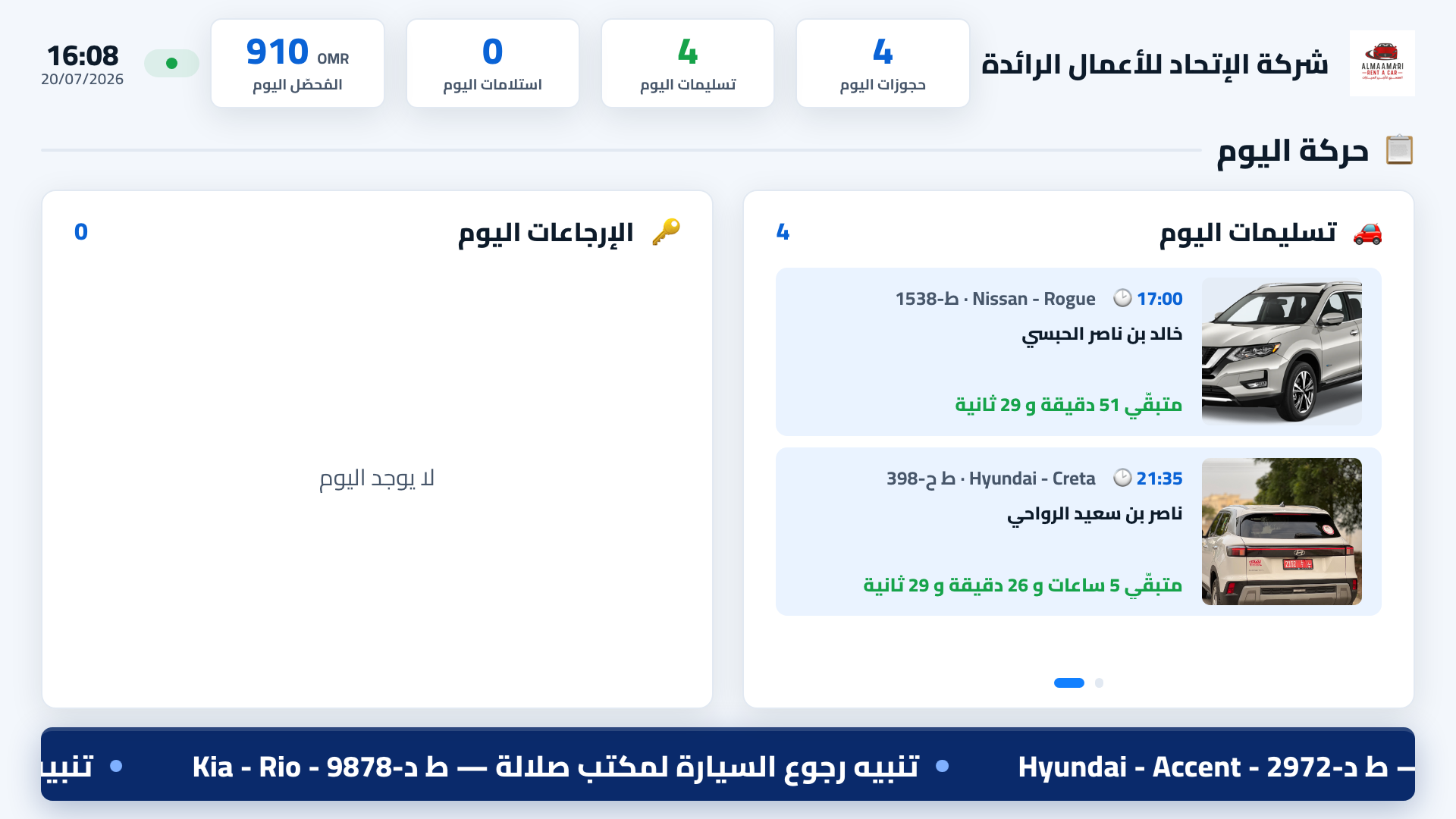
Today's Movement: pickup and return times with a live countdown for each appointment.
Fleet & Tracking: a live GPS map of your cars' locations, with a summary (rented / available / stopped / maintenance) and an occupancy rate.
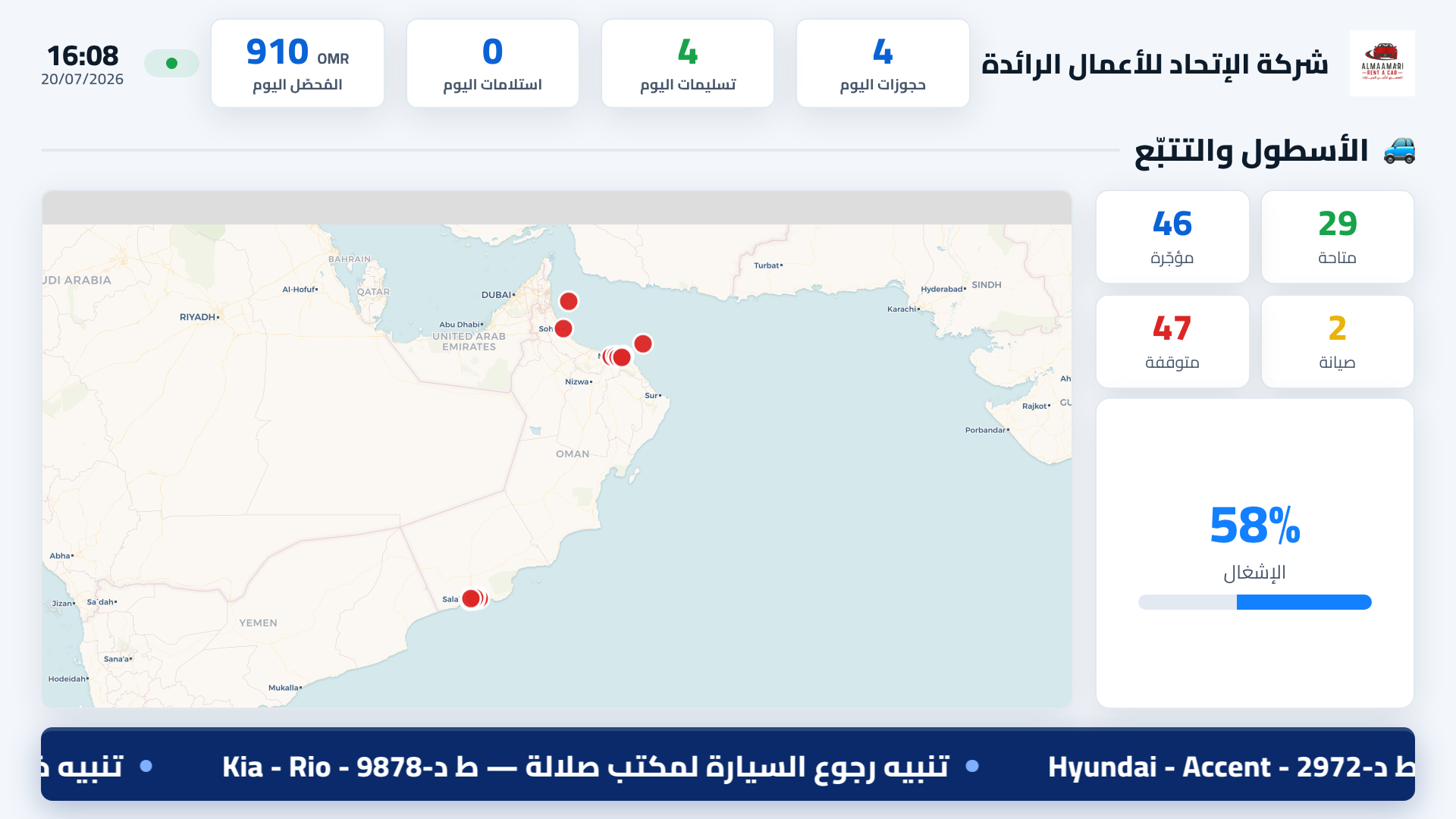
Fleet & Tracking: a live GPS map + fleet stats and occupancy rate.
Alerts & Documents: cars that are near or past their scheduled maintenance (oil change, inspection, tyres…) and expired documents.
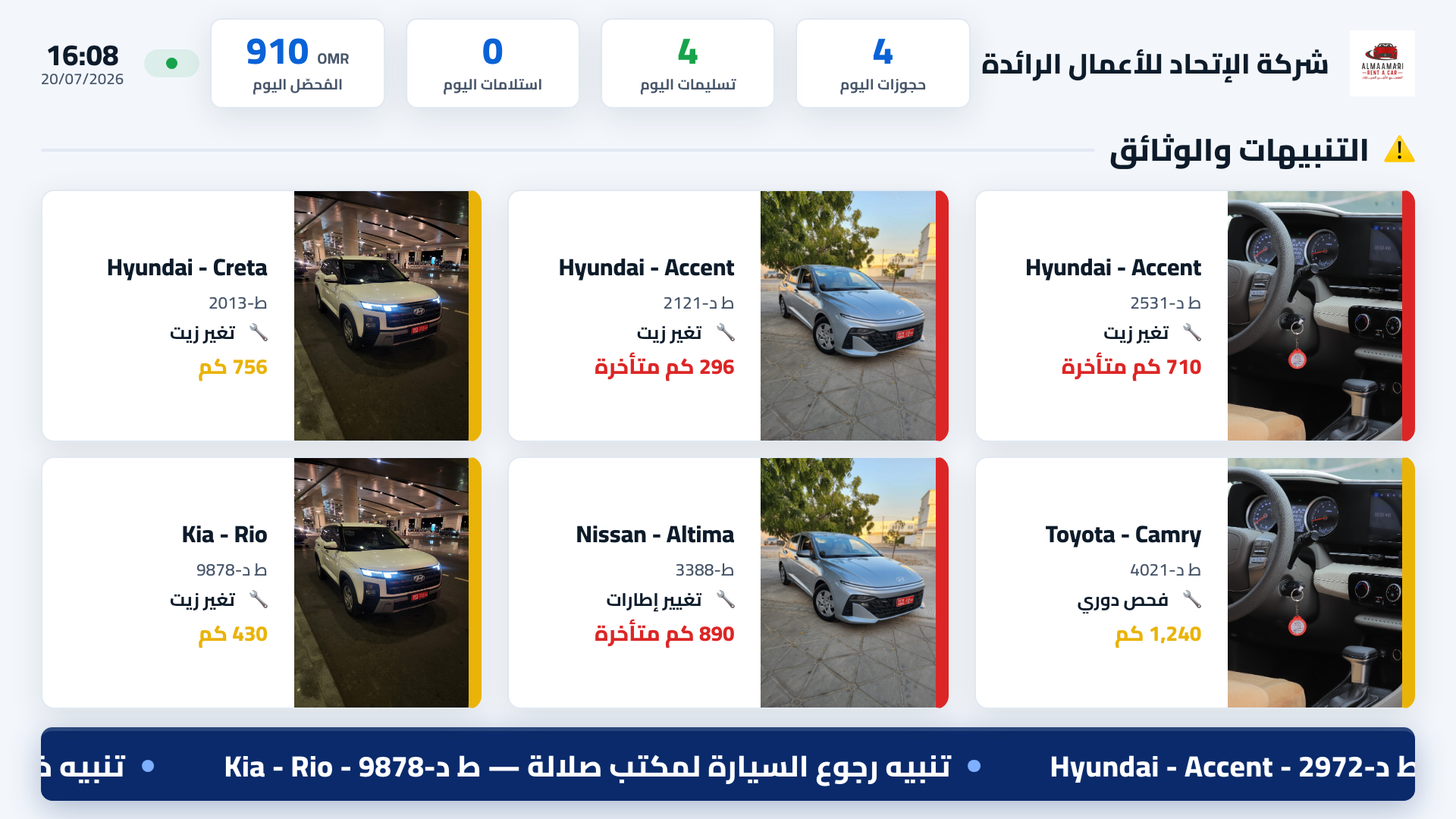
Alerts & Documents: scheduled-maintenance alerts (remaining/overdue kilometres) and expired documents.
Maintenance: jobs in progress now, scheduled maintenance, the week summary, and workshops.
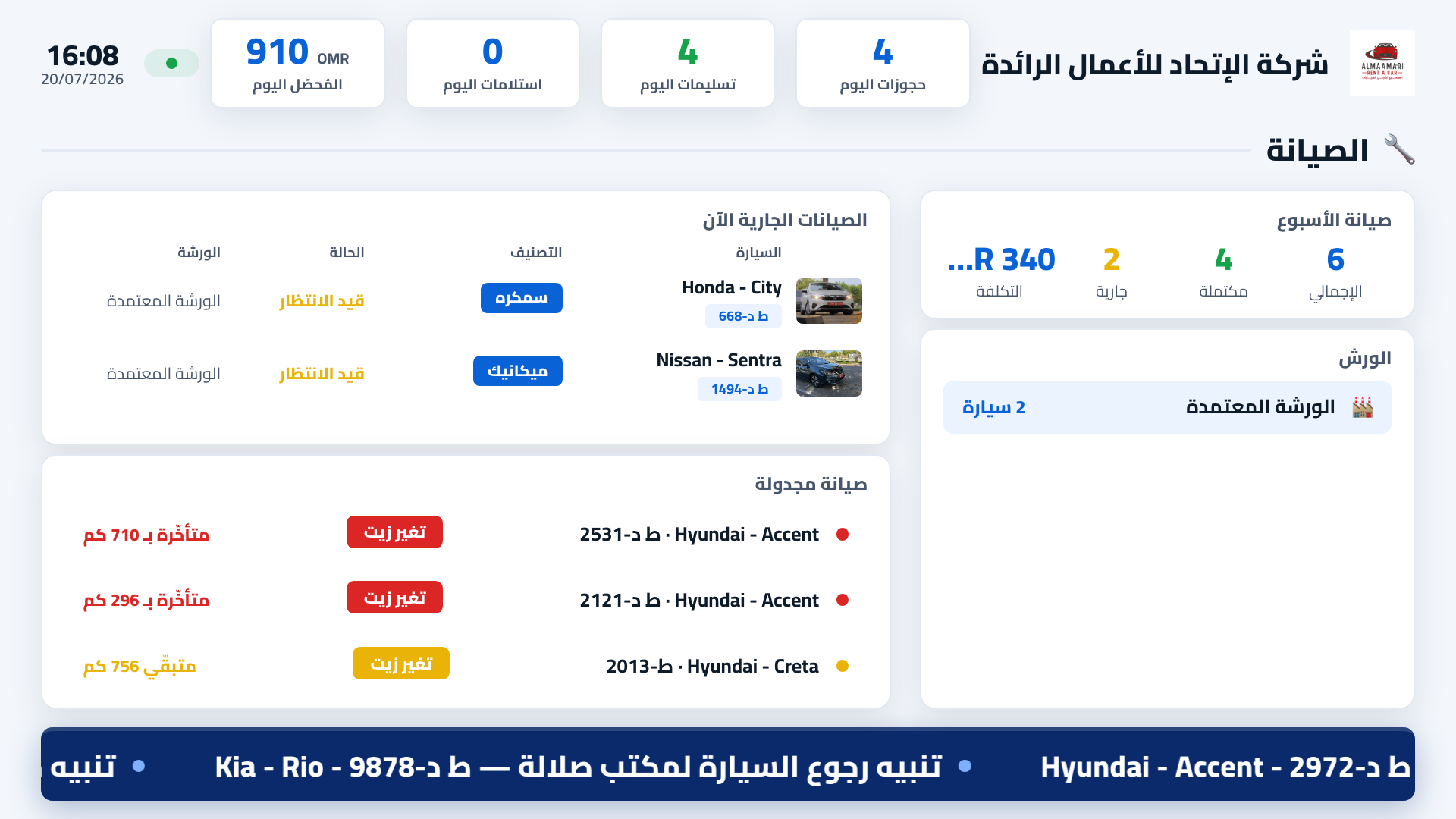
Maintenance: in-progress and scheduled jobs + a weekly summary + approved workshops.
Staff Movement: a staff performance board (today's deliveries/returns), plus employee of the week and of the month.
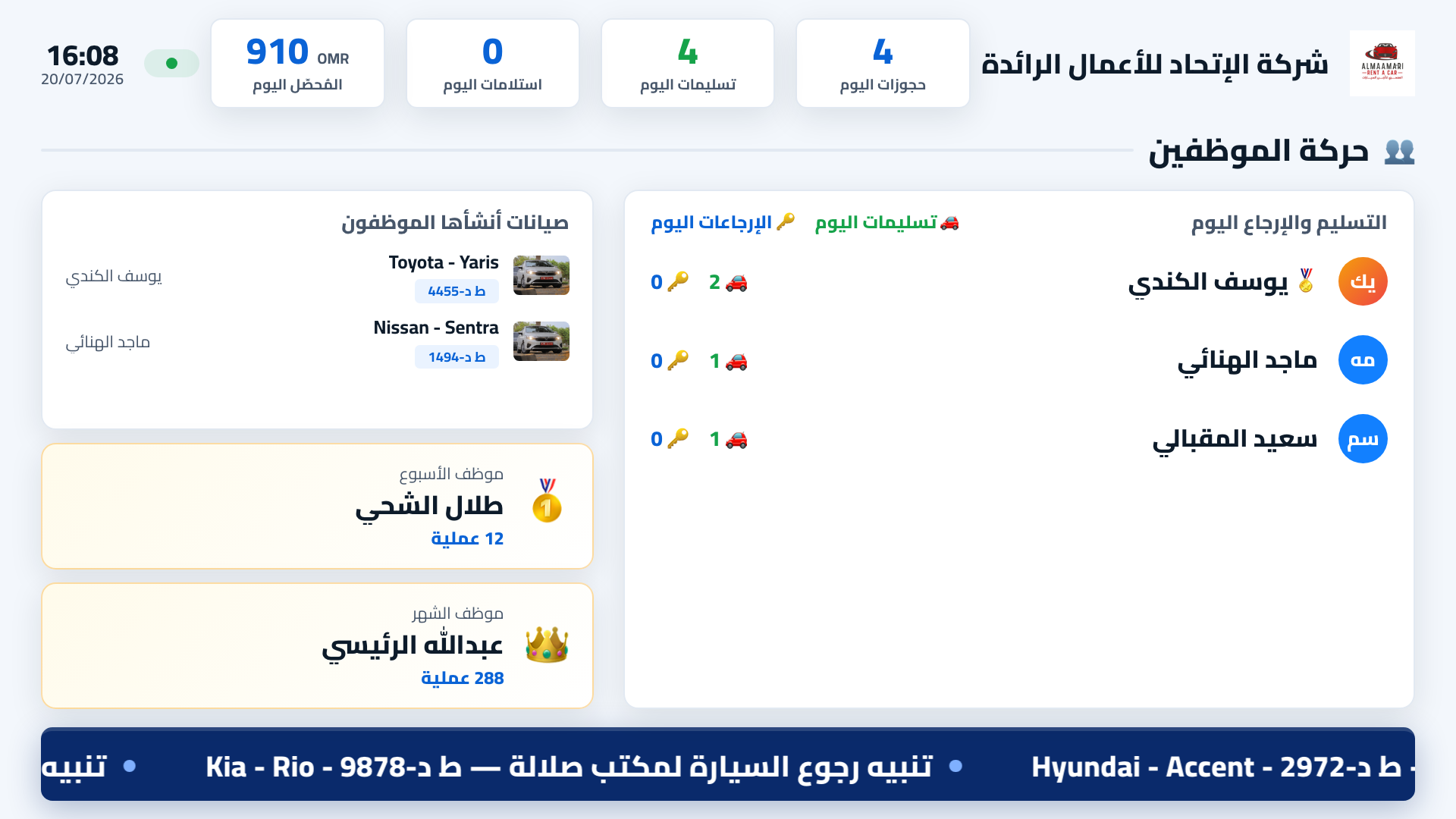
Staff Movement: a performance board + employee of the week and month — to motivate the team.
What you need to start
- A display: a Smart TV running Android TV (preferred), or any smart screen with an internet browser.
- Internet: Wi-Fi or a network cable on the screen.
- The KIRA TV app: install it from Google Play on an Android TV, or open
tv.kira-app.comin the screen's browser. - Screen-management permission: the company owner always has it, and can grant it to a trusted staff member.
How to activate a screen (pairing steps)
Step 1: open the KIRA TV app on the screen (or open tv.kira-app.com). A pairing screen appears with a 6-digit code and a QR code:
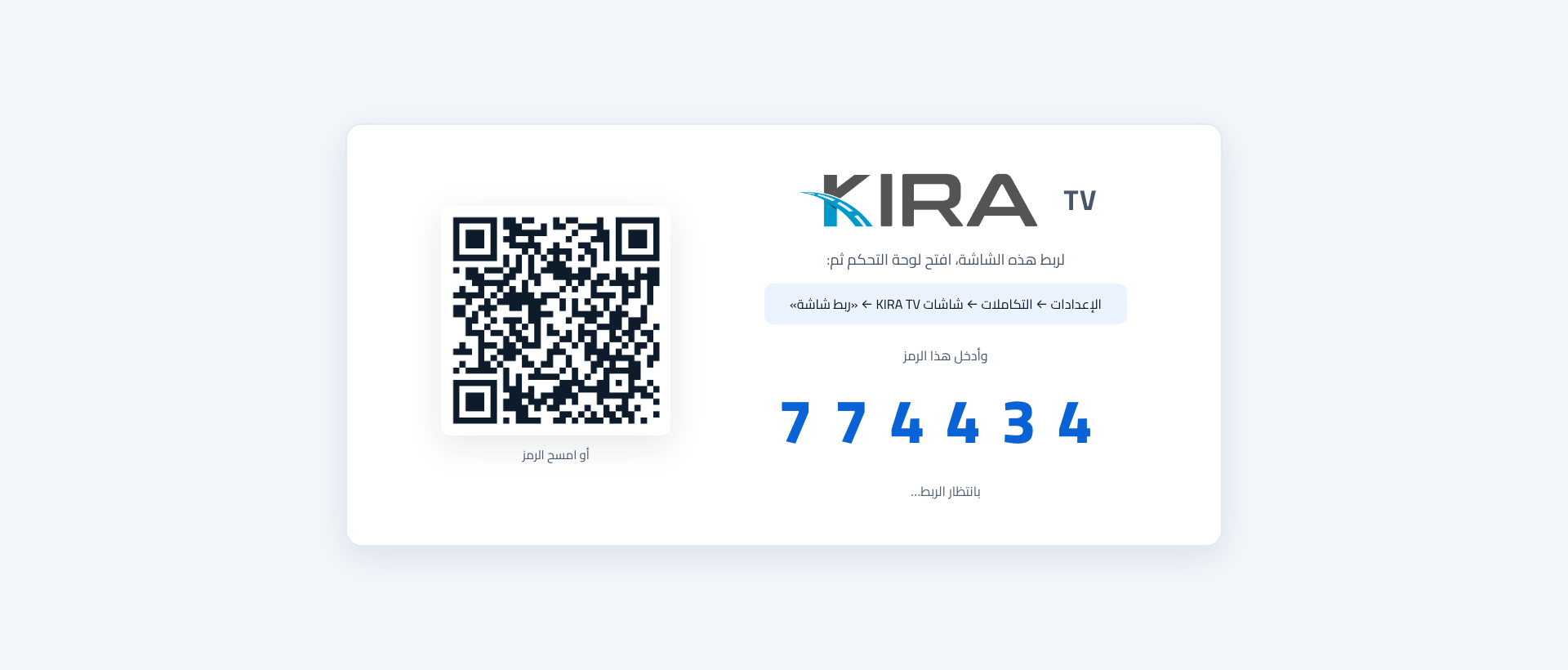
The pairing screen: copy the 6-digit code (or scan the QR code with your phone).
Step 2: in the KIRA dashboard go to: Settings → Integrations → KIRA TV Screens → "Pair a screen".
Step 3: in the "Pair a screen" form, fill the four fields:
- Pairing code: the 6-digit code shown on the screen.
- Display mode: choose "Operations Board" or "Cars Showcase".
- Scope: "Whole company" or a specific branch (to show only that branch's data).
- Screen name: a name to identify it (e.g. "Reception screen" or "Office screen").
Step 4: press "Pair screen". Within seconds the screen switches automatically from the code page to the display mode you chose — and starts refreshing on its own. No further setup needed.
Pairing didn't work? Make sure the code currently shown on the screen is the same one you entered (the code stays valid for days, but reopen the app if unsure), and check the screen is online.
Managing your screens
From the same page (KIRA TV Screens) you see a list of all your paired screens, each with:
- Edit: change the display mode, branch or name at any time (changes apply to the screen automatically).
- Unpair: stops the screen and returns it to the code page (it needs a new pairing to run again).
- Delete: removes the screen from the list permanently.
Your free screen and extra screens
Every company gets one free screen. When you try to pair a second screen a message appears with a button that opens the KIRA sales team on WhatsApp to request more screens:
📱 To add screens, contact the KIRA sales team on WhatsApp: +90 535 888 2111
Tips to get the most out of it
- Placement: put a "Cars Showcase" screen at reception facing customers, and an "Operations Board" screen in the staff area.
- Keep it on: the screen is built for 24/7 — leave it running and online so the display stays current.
- Refresh after updates: after any app update, reload the page or reopen the app on the screen to get the latest version.
- Scope per branch: if you have more than one branch, pair a screen per branch with its own scope so it shows only that branch's data.
- Privacy: "Cars Showcase" is safe in public (cars and prices only); "Operations Board" shows daily activity and operational data, so keep it in the staff area, not facing customers.
FAQ
Do I need a remote? No. The screen is passive and rotates scenes automatically; all settings are done from the dashboard.
Can it run on a normal TV? Yes, if it is a Smart TV with a browser — open tv.kira-app.com on it. On an Android TV, installing the KIRA TV app from Google Play is preferred.
How many screens can I activate? One free screen per company, and more by request from the KIRA sales team.
What if an old code shows on the screen? Reopen the app/page to refresh the code, then enter it again.
🚗 After setting up a "Cars Showcase" screen, make sure your cars, specs and prices are up to date via the Fleet Guide so the showcase looks its best.