Fleet Guide 5/7 — Maintenance Requests
Record every service on your cars with its cost and documents: from pending to in-progress to done — with a KPI panel showing what's pending and this month's cost, and the cost linked to accounting and payment.
🚗 Fleet Guide Series — Part 5 of 7 · Stage: Maintenance · Full series index
What you will learn
- Read the maintenance KPI panel and track request statuses.
- Record a new service with its details, cost and payment.
- Document the service with photos and invoices.
Step 1: Open maintenance requests
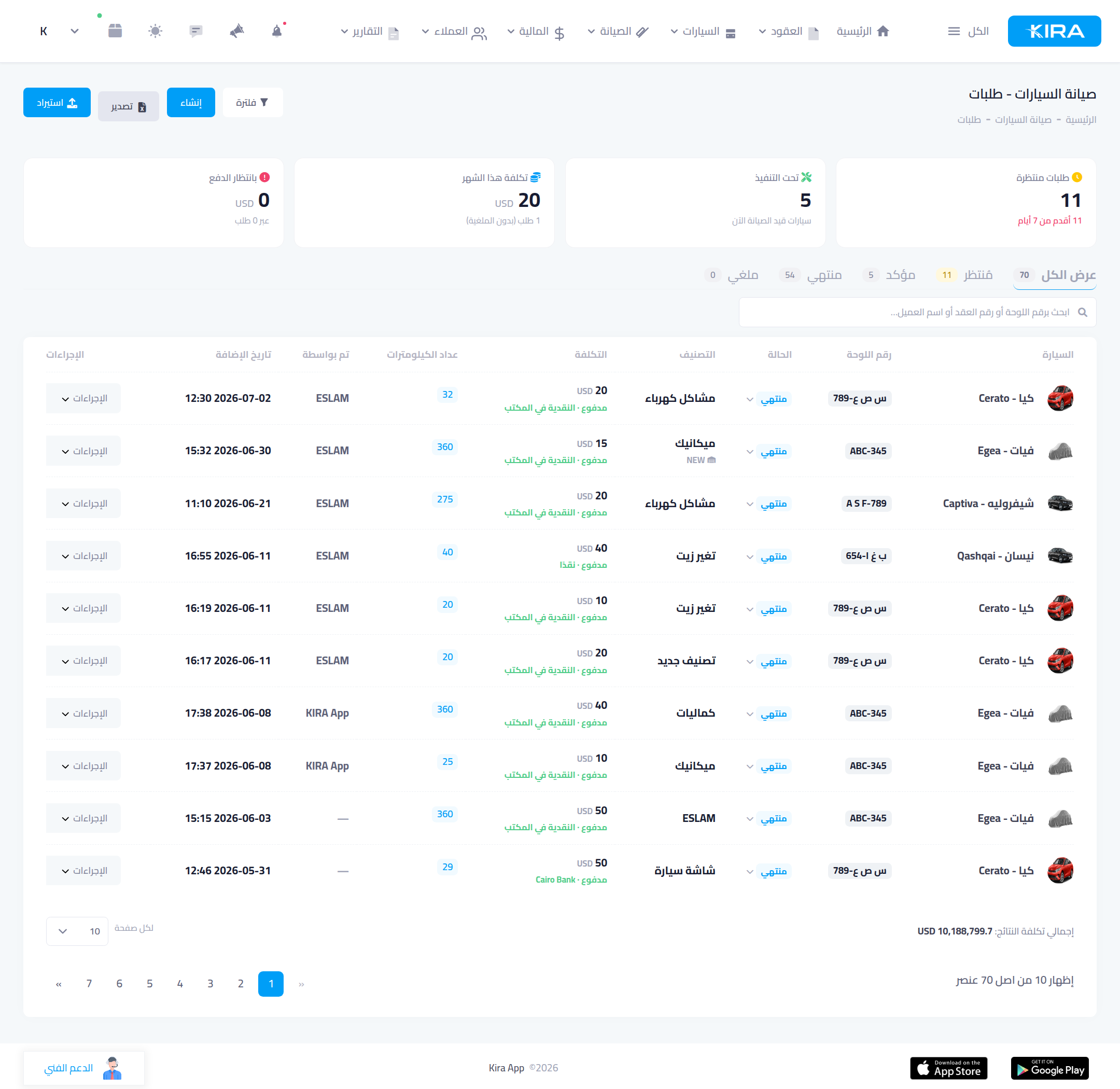
From “Maintenance → Requests”. On top, a KPI panel: pending requests (with an alert for those older than 7 days), in progress, this month's cost, awaiting payment. Below it, status tabs: show all · pending · confirmed · done · cancelled, search by plate/contract/customer, and a table of every service (car, category, status, cost, odometer, who recorded it).
Step 2: Record a new service
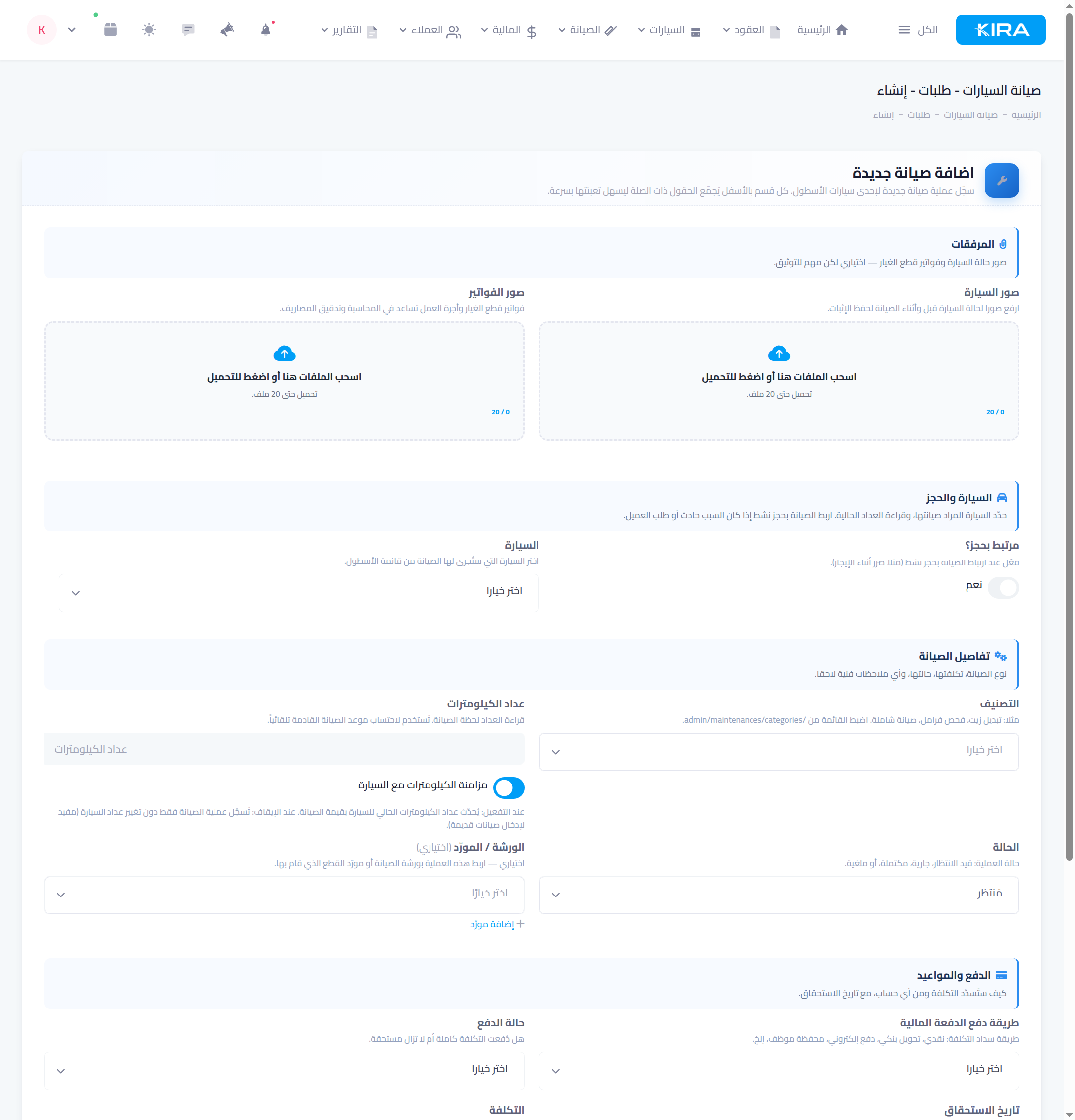
Press “Create”. The form is split into clear sections:
- Car & booking: pick the car, and optionally link the service to an active booking if it was caused by damage during the rental.
- Service details: category (oil change, brake check, full service…), odometer (updates the car's reading via the “sync kilometres” switch), status (pending / in-progress / done / cancelled), and the workshop/supplier (optional).
- Payment & dates: payment method (cash, bank transfer, electronic, employee wallet), bank account, payment status (paid / awaiting payment), cost, and due date.
- Attachments: car-condition photos and parts invoices — optional but your reference at audit time.
Then “Save”.
After recording
The service appears in the list with its status; you can change the status quickly from the table or open the request details to follow its lifecycle. An open service on a car shows it in your fleet as “Maintenance” (takes priority over “rented”) until done. Linking the payment to a bank account reflects the cost on its balance.
Common mistakes
- Odometer not synced: for a current service enable “sync kilometres” to update the car's reading; for an old back-dated service disable it so you don't roll the odometer backwards.
- A cost with no account: pick the bank account so the expense reflects and your reports reconcile.
- Leaving a request “pending” after it's done: update it to “done” so the car becomes available and your indicators stay clean.
⬅ Next in the series: Part 6: Scheduled-Maintenance Alerts
Previous: Part 4 — The Cars List and Their Statuses · Series index