Contracts Guide 3/9 — The E-Contract, Signatures and Sharing
Every contract generates an electronic copy with a public link and QR code: the customer opens it on their phone, reviews the vehicle condition and terms, and signs electronically — delivered automatically in the WhatsApp booking confirmation.
📄 Contracts Guide Series — Part 3 of 9 · Stage: Creating the contract · Full series index
What you will learn
- Open the e-contract from the contract page and share it with the customer.
- Read its contents: customer, vehicle, condition diagrams and terms.
- Electronic signing for both parties and the automatic display language.
Step 1: Open the e-contract
From any contract page press “Rental contract”. The e-contract opens in a new tab with a public link — your customer can open it on their phone with no login. Send the link yourself, or let the platform do it: with WhatsApp notifications enabled, the link is delivered automatically inside the booking-confirmation message.
Step 2: Read the contract contents
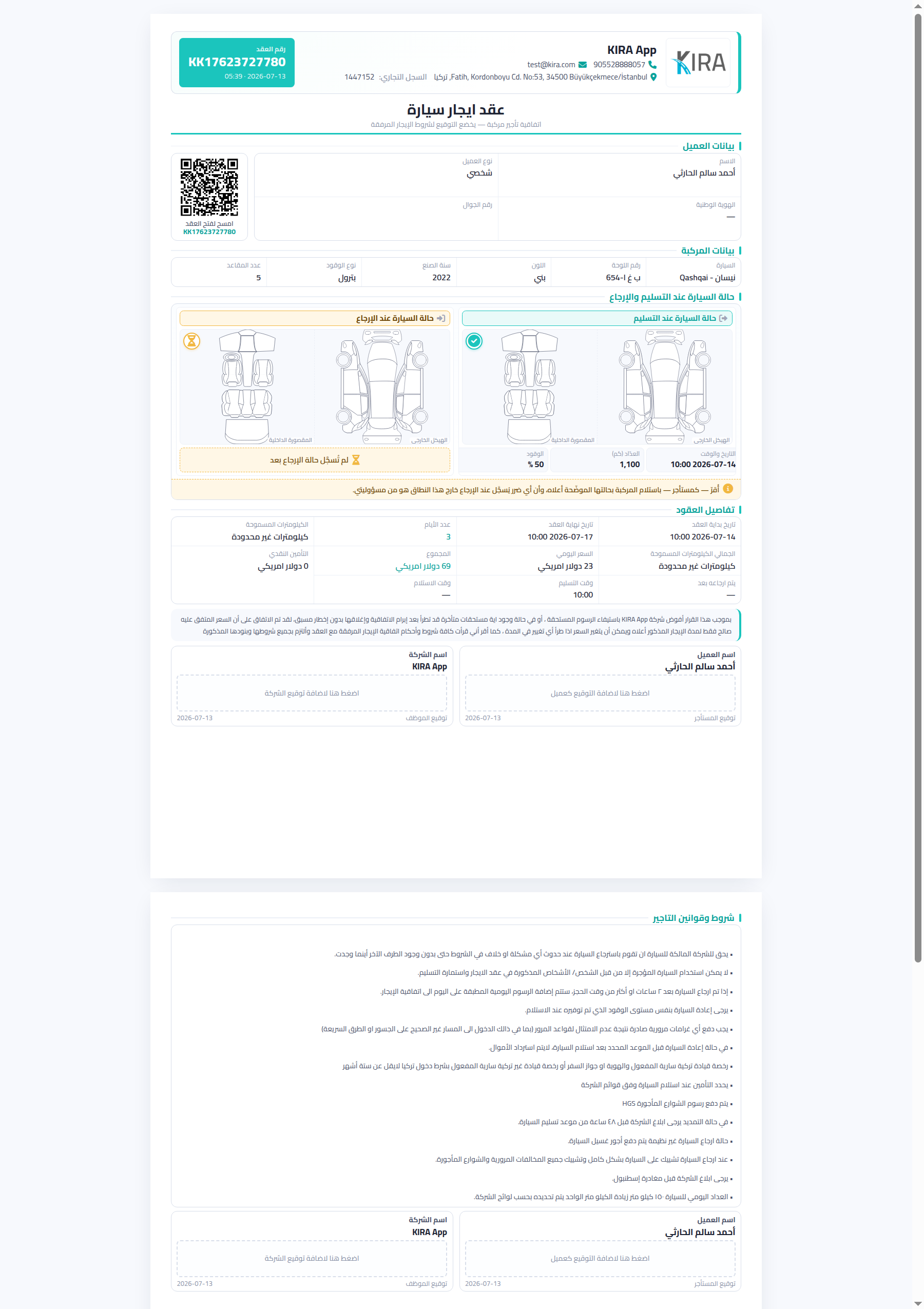
The contract shows its number and a QR code (scan to open on any device), then ordered sections: customer information, vehicle information (car, plate, colour, year…), vehicle condition at handover and return with body/cabin diagrams, odometer and fuel readings, order details (period, days, daily price, total, deposit), then your company's rental terms and conditions.
Step 3: Electronic signatures
At the bottom are two signing slots: renter signature and staff/company signature. Each party taps “click here to add your signature”, a drawing pad opens, and they sign with a finger (on phone) or mouse; the signature is saved on the contract with its date. The customer signing from their phone removes paper entirely.
Contract language
The contract renders in the customer's browser language automatically: Arabic for Arabic browsers, English otherwise — no setup needed. The terms text is managed from your company settings (Settings → Contract terms).
Common mistakes
- Requesting a signature before the contract is confirmed: the link is auto-sent for confirmed contracts — pending ones may change or be declined.
- Empty rental terms: if you never entered your terms in Settings, the terms page renders sparse. Write them once and they appear on every contract.
⬅ Next in the series: Part 4: Hand Over the Car and Document Its Condition
Previous: Part 2 — Create a New Contract with the Wizard · Series index