Advanced Accounting Guide 8/8 — Fiscal Years & Year-End Close
A complete guide to managing fiscal years in KIRA: defining years, locking accounting periods, running and reviewing the year-end close, reopening years, and importing opening balances via an Excel template.
📚 Advanced Accounting Guide — Part 8 of 8 · Stage: Year-End · Full series index
As your company's books grow, protecting reviewed accounting periods becomes essential: you don't want an entry in a closed month to be modified, and you don't want a finished year's profits mixing with the new year's. The "Fiscal Year" page in KIRA brings all of this together in one place: defining fiscal years, manually locking periods, running the year-end close that transfers net profit to retained earnings, and reopening when needed — plus importing opening balances for companies migrating from another accounting system.
You reach the page from: Finance ← Advanced Accounting ← Fiscal Year. There you'll find the fiscal years table, the "Lock Accounting Periods" card, and the "Opening Balances" card. At the top of the page, a badge shows the current effective "Locked until" date.
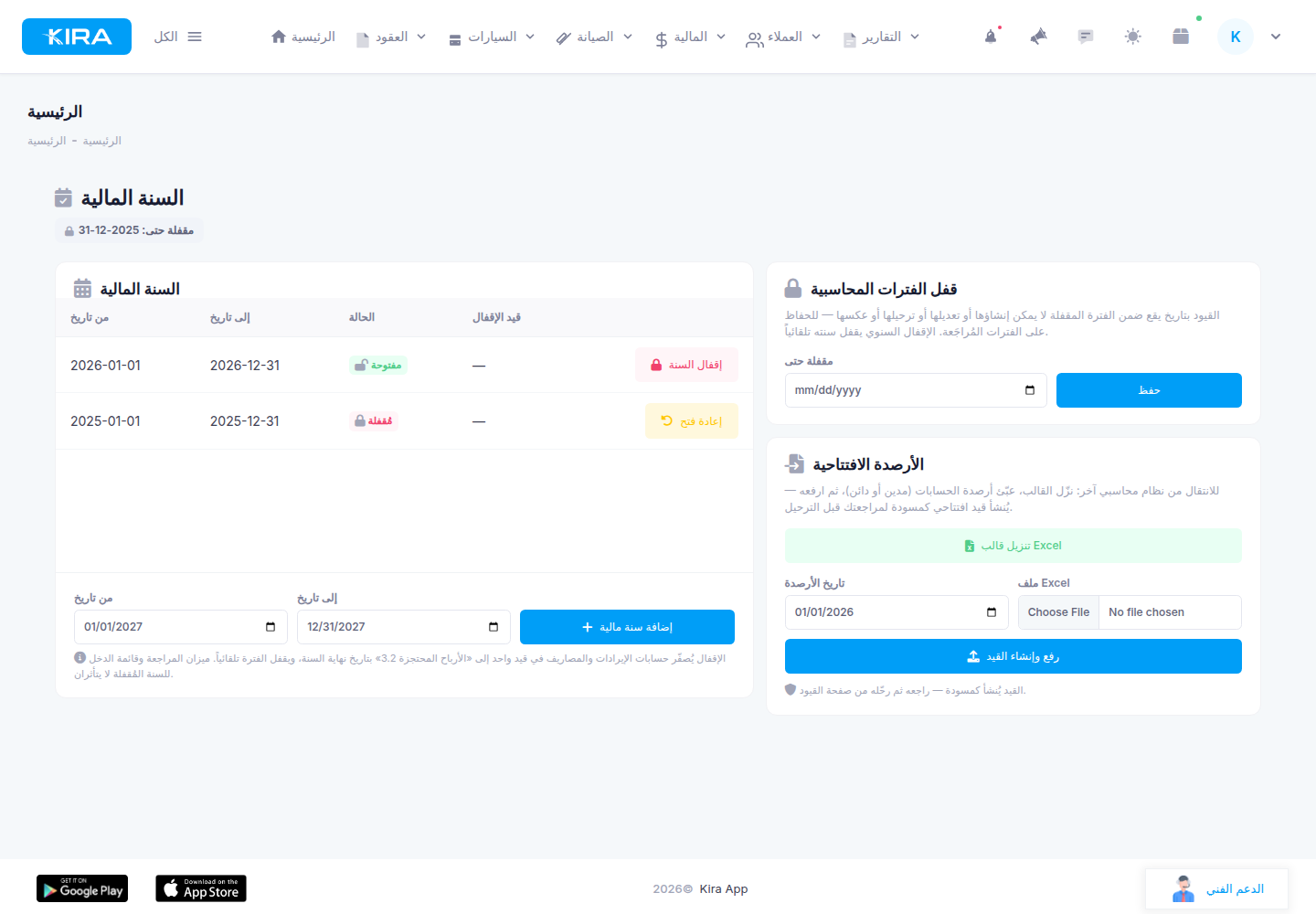
The Fiscal Year page: the years table (an open year with a "Close Year" button and a closed one with "Reopen"), the manual lock card, and the opening balances card.
Defining a New Fiscal Year
Set "From date" and "To date", then click "Add Fiscal Year". The system does not allow overlapping years — every date must belong to exactly one fiscal year, which guarantees the year-end close later covers an unambiguous period. Most companies use the calendar year, but you can define any non-overlapping period that fits your business cycle.
Manually Locking Accounting Periods
The manual lock protects months you have already reviewed from accidental changes. From the "Lock Accounting Periods" card, set a "Locked until" date and save. From that moment, any entry dated within the locked period:
- Cannot be created.
- Cannot be edited.
- Cannot be posted.
- Cannot be reversed.
Important note on reversals: reversing a posted entry is dated at the original entry's date. So reversing an entry that falls in a locked period is also refused — accepting it would inject a new movement into a period you declared closed. If you truly need to correct something in a locked period, lift the lock first by clearing the date, then re-lock after finishing. You can lift or adjust the manual lock at any time.
Year-End Close: What Exactly Does It Do?
Once the fiscal year has ended and its figures are reviewed, click "Close Year" on the year's row. The system then performs three steps in one operation:
- Zeroes out revenue and expense accounts for the year in a single posted closing entry.
- Transfers the net (revenue minus expenses) to the "Retained Earnings 3.2" account under equity.
- Automatically locks the entire year's period — no manual lock needed.
Conditions Enforced Before Closing
The system refuses to close — with a clear reason — in these cases:
- The year hasn't actually ended yet: you cannot close a year still in progress.
- An earlier year is still open: closing happens strictly in chronological order; close older years first.
- The year contains unbalanced posted entries: the system never freezes an imbalance into equity. Fix the offending entries first, then retry.
What Happens to Your Reports After Closing?
- The income statement and trial balance for the closed year keep reading its correct historical figures — the closing entry does not flow into them. If 2025's net profit was 11,472 OMR, the 2025 income statement still shows it after closing.
- The balance sheet and account statement reflect the net moving into retained earnings.
- The "Net Profit (Unclosed Periods)" line on the balance sheet shrinks by the closed year's amount — its profit is now officially part of retained earnings.
How to Verify the Close
- Open the account statement for "Retained Earnings 3.2" — you'll see the closing entry line with its reference, for an amount equal to the closed year's net.
- Open the account statement of any revenue account for the closed year — its running balance ends at zero after the closing line, which is exactly the intended zeroing.
Reopening a Closed Year
Found a missing entry or an error after closing? Click "Reopen" on the closed year's row. Reopening is available latest-first.
The key point: reopening does not delete history. The system does not erase the closing entry — it creates a reversing entry for it and reopens the year, so your accounting record tells the full story: the year was closed, then reopened. After making your adjustments, you can close the year again normally.
Opening Balances: For Companies Migrating from Another System
If your company is moving to KIRA from a previous accounting system, you need to bring in your account balances as they stood at the end of your work on the old system. The "Opening Balances" card makes this a simple Excel process.
Step by Step: Importing Opening Balances
- From the Fiscal Year page, click "Download Excel Template" — you'll get a file listing your leaf accounts with their codes.
- Open the last trial balance from your previous system and copy the figures into the debit / credit columns of the template, each against its matching account.
- Make sure total debits equal total credits — this is mandatory.
- Set the balance date (usually your last working day on the previous system).
- Click "Upload and Create Entry". If codes are invalid or debits and credits don't balance, the file is rejected with clear errors telling you what to fix.
- On success, an inaugural entry is created as a draft — it does not enter your reports yet. Review it from the entries page, and once you're confident in its figures, post it so it officially enters your reports.
Best Practices
- Lock each finished month after reviewing it: use the manual lock monthly — set "Locked until" to the end of the month you reviewed. Protection advances month by month, and you avoid reviewing a full year in one sitting.
- Run the year-end close at the start of the new year: after December's entries are complete and the full-year trial balance is reviewed — not before.
- Review before you close: resolve any unbalanced entries in advance — the system will refuse to close with them anyway, and fixing them early is easier.
Frequently Asked Questions
I tried to edit an old entry and the system refused — why?
The entry's date falls within a locked period (either a manual lock or a year-end close). Check the "Locked until" badge at the top of the Fiscal Year page. If it's a manual lock and you genuinely need the edit, lift the lock temporarily by clearing the date, then set it again when done.
Does the year-end close affect the closed year's income statement figures?
No. The income statement and trial balance keep showing the year's correct historical figures, because the closing entry doesn't flow into them. The change appears only in the balance sheet and account statement, where the net moves into retained earnings.
Is my data deleted when I reopen a year?
Nothing is deleted at all. Reopening creates a reversing entry for the closing entry and reopens the year, keeping the accounting history complete. You can close the year again later after your adjustments.
Why does the system refuse to close 2025 even though it has ended?
There are three possible reasons, and the system shows the reason clearly on refusal: an earlier year (such as 2024) is still open — closing is chronological; the year contains unbalanced posted entries that must be fixed first; or the year hasn't actually ended yet.
🎉 You have completed the full Advanced Accounting cycle! From building the chart of accounts and mapping operations, through daily entries and periodic reports, to the year-end close and its review.
Return to the series index anytime, and contact support from inside the system for any question. Previous: Part 7 — Balance Sheet & Account Statement