Advanced Accounting Guide 7/8 — Balance Sheet & Account Statement
A practical guide to reading the Balance Sheet in KIRA — its cards and the "Balanced" badge — and using the Account Statement to trace any account's movements down to the individual entry.
📚 Advanced Accounting Guide — Part 7 of 8 · Stage: Daily Work & Review · Full series index
Once your daily entries are recorded and posted, two questions matter most to any accountant: what is the company's financial position right now, and what exactly moved a given account to its current balance? KIRA's Advanced Accounting answers both through two complementary pages: the Balance Sheet, a snapshot of your financial position as of a chosen date, and the Account Statement, which details every movement of any account in your tree with a running balance.
This article explains how to read the Balance Sheet and its "Balanced" badge, then how to use the Account Statement for auditing, reconciliation, and tracing the source of any figure in your reports.
The Balance Sheet: your financial position at a point in time
Reach the page from: Finance ← Advanced Accounting ← Balance Sheet. At the top you will find an "As of" date filter, a branch filter, and a print button. The Balance Sheet is not a period report (from/to) — it is a cumulative snapshot showing your account balances as they stand at the end of the selected date.
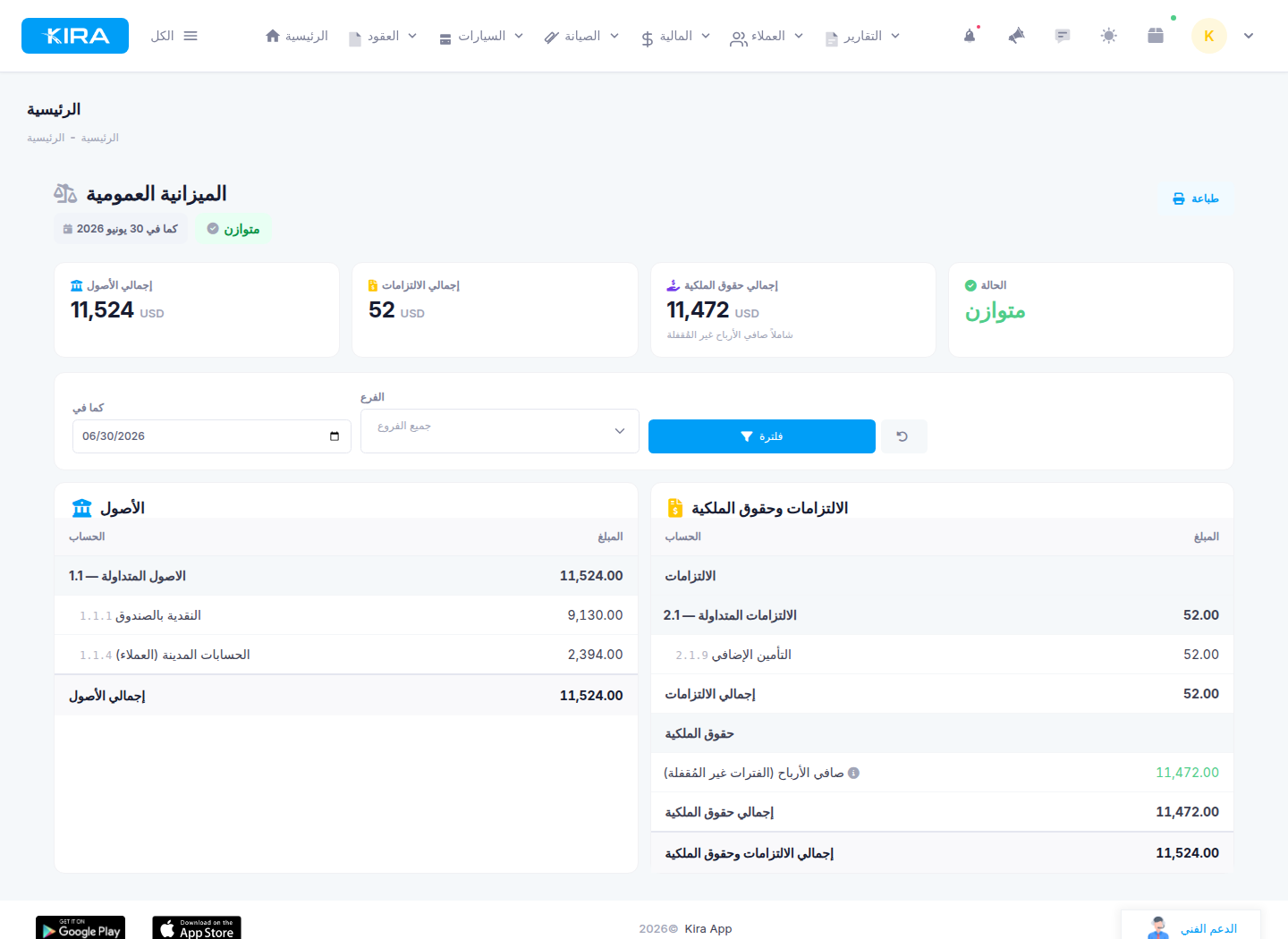
The Balance Sheet: summary cards with the "Balanced" badge, and the two columns — Assets versus Liabilities and Equity — including the computed net profit line.
The summary cards
- Total Assets — everything the company owns: cash and banks, receivables, vehicles, and other assets.
- Total Liabilities — everything the company owes: payables, loans, accruals.
- Total Equity — the owners' stake: capital, retained earnings, and current-period profits.
- Status — whether the sheet is balanced (explained below).
The two columns
Below the cards, the view splits into two columns: Assets on the left, and Liabilities and Equity on the right — each broken down by your chart of accounts and its group totals, mirroring the structure you built in your account tree.
The accounting equation and the "Balanced" badge
Assets = Liabilities + Equity
When this equation holds down to the smallest fraction, the green "Balanced" badge appears — direct confirmation that every posted entry in your books balances and the totals match exactly.
The "Net Profit (Unclosed Periods)" line
Within Equity you will notice a computed line: "Net Profit (Unclosed Periods)". It represents the profit (or loss) of periods for which no year-end close has been performed yet — your revenues minus expenses for the open years. It is essential for the sheet to balance: current-year profit belongs to the owners even before it is formally closed.
When a fiscal year is closed, its net profit moves into retained earnings and this line shrinks by that amount. If you see its value drop after a year-end close, that is normal and intentional — the amount did not disappear; it moved to its permanent home in retained earnings.
What if it shows "Unbalanced"?
If the status shows "Unbalanced" with a specific difference, that difference reveals a historical data issue — typically old entries whose sides do not balance. The system displays the difference transparently rather than hiding it. To trace the source, use the Trial Balance to identify the affected accounts, then open each account's statement to reach the entries responsible.
The Account Statement: any account, line by line
If the Balance Sheet answers "what is this account's balance?", the Account Statement answers "how did it get there?". Reach it from: Finance ← Advanced Accounting ← Account Statement.
Steps: generating a statement
- Open Finance ← Advanced Accounting ← Account Statement.
- Pick the account from the account tree. Any level works: choosing a parent account aggregates its movements together with all of its sub-accounts.
- Set the period (from/to dates).
- Optionally pick a branch to narrow the statement.
- Click "View Statement".
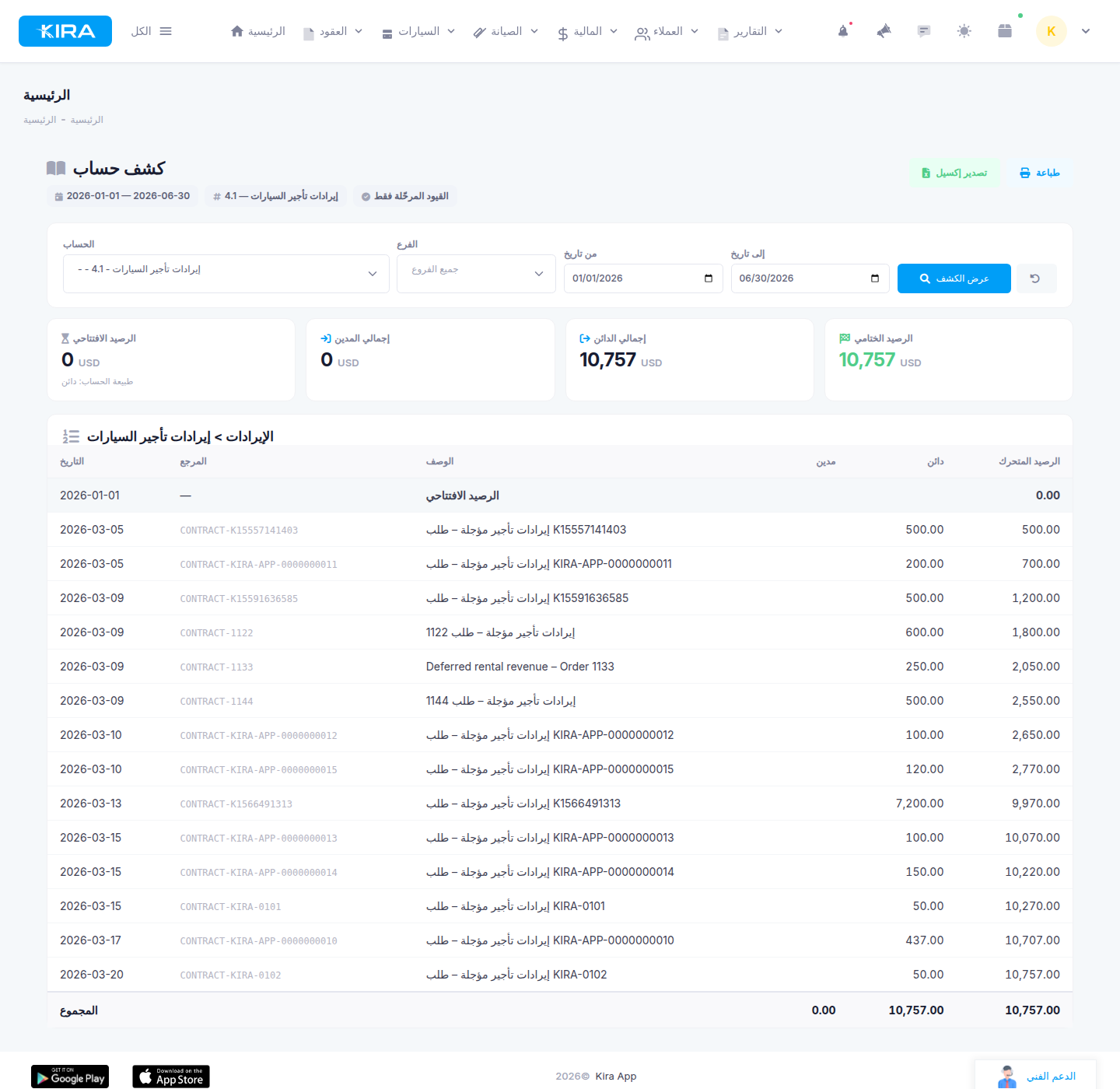
A rental revenue account statement: opening balance and totals cards, and the movements table with running balance and entry references.
Reading the result
The statement first shows four cards: opening balance (with the account's nature — debit or credit), total debits, total credits, and the closing balance. Then comes the movements table, where each row carries: the date, the reference (the source entry number), the description, a debit or credit amount, and the running balance after each movement, with a totals row at the bottom. The running balance is what makes auditing easy: you can watch the balance evolve movement by movement and pinpoint exactly where it diverged from what you expected.
Posted entries only
Note the badge at the top of the page: "Posted entries only". The statement shows exclusively posted entries — drafts never appear. This guarantees the figures in front of you are final and consistent with the Balance Sheet and the Trial Balance.
Print and export
The statement offers print and "Export to Excel" buttons. The export carries the same filters you chose (account, period, branch), making it easy to share with an external auditor or reconcile in a spreadsheet.
The 3,000-row limit
If the period's movements exceed 3,000 rows, the statement shows the first 3,000 with a clear notice that results are truncated. Simply narrow the period (a month instead of a year, for example) to see the rest.
Practical uses
- Auditing a bank account: generate the bank account's statement in KIRA for the same period as your actual bank statement and reconcile line by line. Any movement present in one but not the other deserves a closer look.
- Tracking a customer account or employee custody: pick the account and period to see everything recorded for and against it, with the balance after each movement.
- Understanding any figure in the Balance Sheet or Trial Balance: if a number stops you, open that account's statement — every row carries its source entry reference, taking you from the aggregate figure straight to the original entry.
FAQ
Why did the "Net Profit (Unclosed Periods)" line suddenly drop?
Most likely a year-end close was performed. Closing a fiscal year moves its net profit from this computed line into retained earnings within Equity. Total equity is unaffected — only the amount's location changed.
Why can't I find an entry I recorded in the statement?
The statement shows posted entries only. If the entry is still a draft, it will not appear — post it first, then refresh the statement.
Can I generate a statement for a parent account with several sub-accounts?
Yes. Choose the parent account from the tree and the statement aggregates its movements together with all of its sub-accounts. For more detail, generate a separate statement per sub-account.
The sheet shows "Unbalanced" — what should I do?
The displayed difference points to historically unbalanced entries in your data. Start with the Trial Balance to narrow down the affected accounts, then use each account's statement to trace the responsible entries via the reference column, and correct them. The system shows the difference transparently so you can fix it — not ignore it.
Next in the series ➜ Part 8: Fiscal Years & Year-End Close
Previous: Part 6 — Trial Balance & Income Statement · Series index