Advanced Accounting Guide 6/8 — Trial Balance & Income Statement
A practical guide to reading the Trial Balance and Income Statement in KIRA, verifying your books are balanced, and using both reports in your periodic reviews.
📚 Advanced Accounting Guide — Part 6 of 8 · Stage: Daily Work & Review · Full series index
A car-rental company accountant relies on two core reports to trust the books and understand results: the Trial Balance, which verifies every posted entry is balanced and account balances are sound, and the Income Statement, which answers the key question: did we make a profit or a loss this period? KIRA's Advanced Accounting builds both reports automatically from your posted journal entries.
This article explains how to read each report, what every column means, and how to use them together in your monthly review before closing the month.
First: The Trial Balance
Reach it via: Finance ← Advanced Accounting ← Trial Balance. At the top you'll find filters controlling the report scope: a branch selector, from date and to date fields, a filter button to apply your selection, plus a print button for a paper or PDF copy for your audit files.
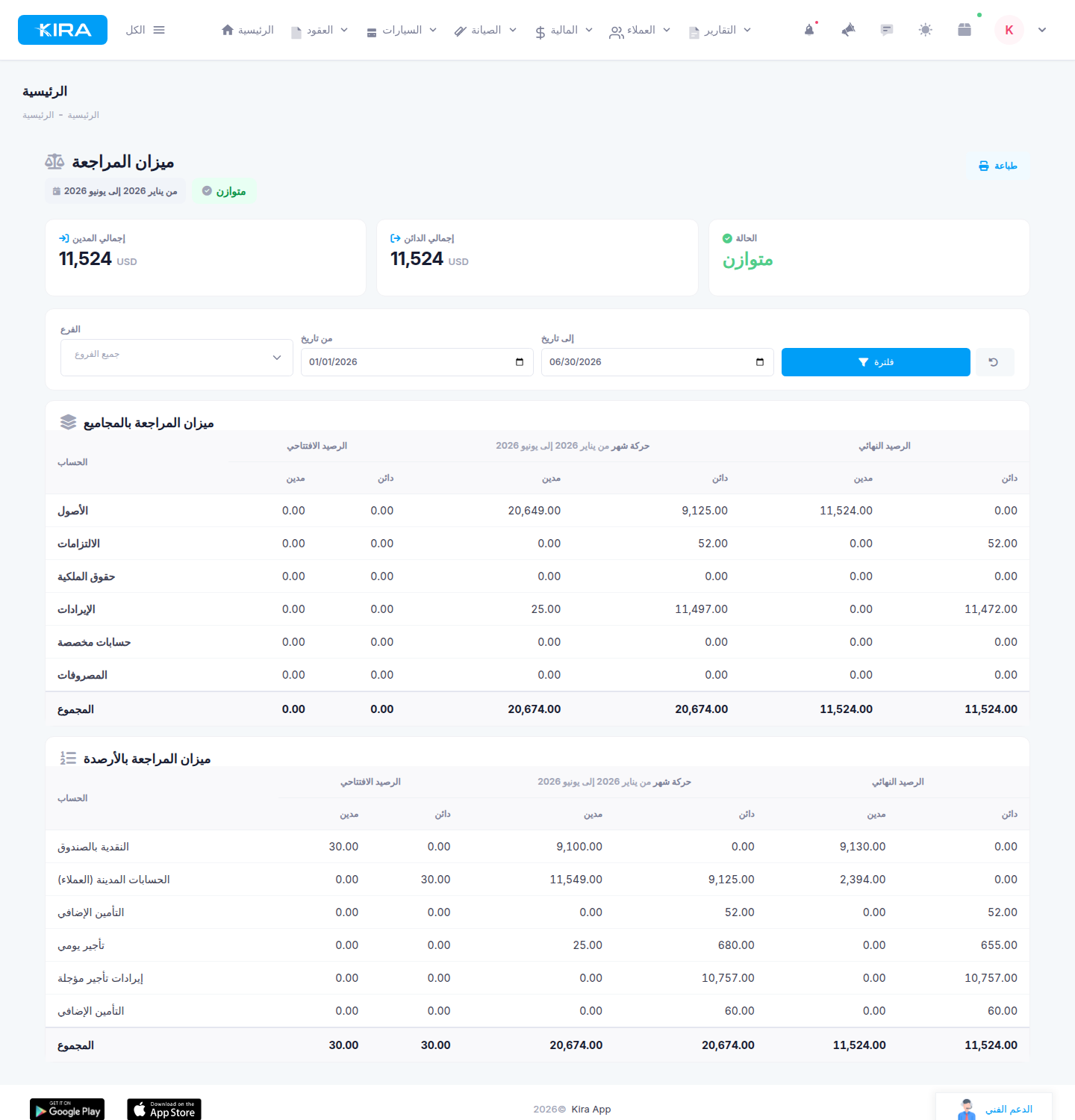
Trial Balance: total debit/credit indicators, the green "Balanced" badge, and the totals and balances tables.
Top indicators: the pulse of your books
- Total Debit: the sum of the debit side of all movements in the period.
- Total Credit: the sum of the credit side of all movements in the period.
- Status: a green "Balanced" badge appears when the two totals are equal.
That green badge is the first thing to check in every review — debit equaling credit is the golden rule of double-entry bookkeeping.
The two tables: totals, then balances
- Trial Balance by Totals: one row per main section of your chart of accounts — Assets, Liabilities, Equity, Revenues, Expenses. The big picture at a glance.
- Trial Balance by Balances: one row per active account with movement. Here you drill to the individual account level — a specific bank account, a rental revenue line, a maintenance expense line.
Columns in each table
- Opening Balance: the total movement before the period start. Filter on June, and the opening balance is everything accumulated through end of May.
- Period Movement: debit and credit recorded within the selected period only.
- Closing Balance: opening balance plus period movement — the figure you reconcile against external sources like bank statements.
What's included, what's excluded?
The Trial Balance is built from posted entries only — drafts never appear. If you recorded an entry and can't find it here, check its status first: was it actually posted?
Also, year-end closing entries are excluded from its calculations. Closing entries zero out revenue and expense accounts at year end; if they were included, a closed year's figures would read as zeros when viewed historically. Thanks to this exclusion, you can always filter the report on a closed past year and read its real numbers as they were.
What if the status shows "Unbalanced"?
KIRA's current system prevents creating unbalanced entries in the first place, so an unbalanced trial balance is a data-integrity signal — usually an old unbalanced entry recorded before today's safeguards. Never ignore it: progressively narrow the date range until you isolate the period where the difference appears, then trace and fix the causing entry. An unbalanced trial balance puts every report built on those numbers in doubt until the source is corrected.
Second: The Income Statement
Reach it via: Finance ← Advanced Accounting ← Income Statement, with the same period and branch filters plus print.
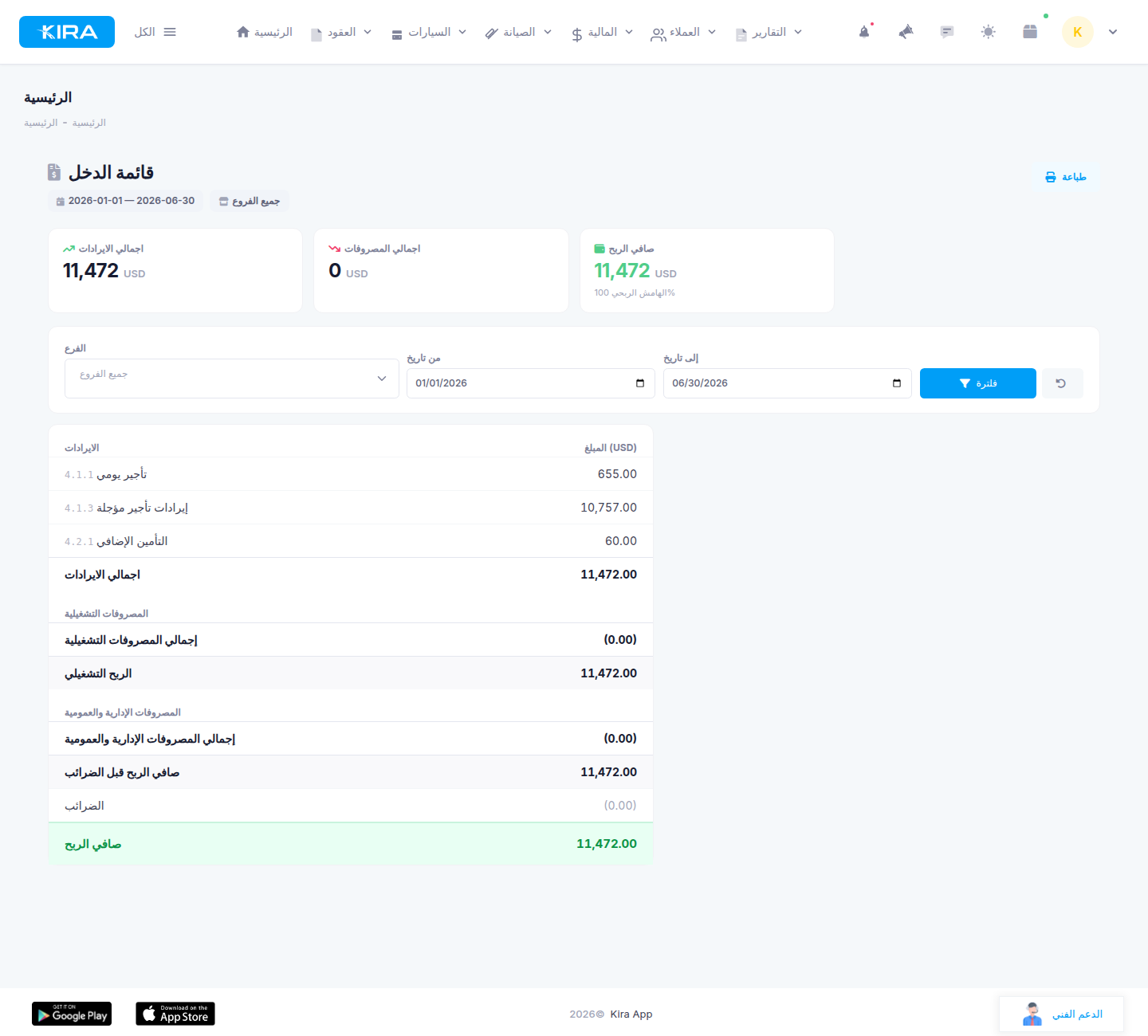
The Income Statement for the selected period: revenues and expenses itemized down to net profit.
The equation and the breakdown
Revenues − Expenses = Net Profit (or Loss) for the period
Its real value is in the detail: revenues and expenses are itemized by the revenue and expense accounts in your chart of accounts. If your tree separates daily rental revenue from long-term contract revenue, and maintenance from salaries from insurance, you'll read each line's contribution individually — which makes it an analysis tool, not just a bottom-line number.
Like the Trial Balance, it's built from posted entries only, and year-end closing entries never enter it — a closed year's income statement keeps reading its true figures forever.
What to use it for
- Assessing a period's profitability: filter on a month, quarter, or year and read the net result directly.
- Comparing periods: pull June's statement, then May's — did revenue grow? Did a specific expense line balloon?
- Reading the impact of large expense items: when net profit dips despite steady revenue, the breakdown shows which expense line is responsible — an exceptional OMR 1,500 maintenance bill in one month will stand out clearly.
How the two reports relate — and connect to the rest of the system
The two reports are two faces of the same books: the Trial Balance verifies the numbers' integrity; the Income Statement reads their result. The link extends to the Balance Sheet: the net profit shown on the Income Statement is the same figure that appears on the Balance Sheet under "Net Profit (unclosed periods)" before the year-end close is run. Matching those two figures is itself an excellent review step to add to your routine.
Practical steps: your monthly review with both reports
- Open Finance ← Advanced Accounting ← Trial Balance, set the branch (if needed) and the ended month's period, and click Filter.
- Check the green "Balanced" badge first and that total debit equals total credit. If not, stop and trace the issue before anything else.
- Review the Totals table for the big picture, then drill into the Balances table and reconcile bank-account closing balances against your bank statements for the same period.
- If a figure looks off, jump to that account's Account Statement to trace its movements in detail — the Trial Balance is the natural starting point for that.
- Open Finance ← Advanced Accounting ← Income Statement for the same period, read the net profit and the revenue/expense breakdown, and compare with the previous month.
- Print both reports and attach them to the month's review file, then proceed to close the month with confidence.
FAQ
I recorded an entry but it doesn't appear in either report — why?
Most likely the entry is still a draft; both reports are built from posted entries only. Check its status, post it, and re-filter. Also confirm the entry's date falls within the filtered period.
We closed last fiscal year — will its figures now show as zeros?
No. Year-end closing entries are excluded from both the Trial Balance and the Income Statement, so filtering either report on a closed year shows its real historical figures — revenues, expenses, and net profit.
The Trial Balance shows "Unbalanced" — what should I do?
Don't ignore it. It signals a data issue, usually an old unbalanced entry. Progressively narrow the filter period (year ← month ← days) to pinpoint when the difference appears, then review that period's entries and fix the cause. The current system blocks unbalanced entries, so the problem is almost always historical data.
Where do I find the Income Statement's net profit on the Balance Sheet?
Under "Net Profit (unclosed periods)" on the Balance Sheet — the same figure before the year-end close is run. Matching the two is a quick consistency check across your reports.
Next in the series ➜ Part 7: Balance Sheet & Account Statement
Previous: Part 5 — Creating & Managing Journal Entries · Series index