Multi-Currency — Rent, Maintain and Spend in Any Currency
Give each cash box or bank account its own currency, record payments, operations and maintenance in the box currency automatically, and keep reports consolidated in your base currency — the feature and step-by-step activation on web and mobile.
What Is the Multi-Currency Feature?
KIRA lets you rent, maintain and spend in any currency, and keep your accounts in order. Each cash box or bank account is assigned its own currency, and every amount is recorded in that box's currency automatically — staff never pick a currency or convert by hand. At the same time your financial reports stay consolidated in one base currency, so you always see one clear picture of your company no matter how many currencies you deal in.
How Your Company Benefits
- No manual conversion and no guessing exchange rates — the system does the math.
- The original amount in its true currency is always kept, so you know exactly what you actually received.
- Each box reconciles with its real balance in its own currency.
- Rounding differences from exchange rates are handled automatically, so contracts don't end up unbalanced by small differences.
- Refunds go back in the currency originally paid.
- The same feature works on the web dashboard and the mobile app.
Step 1: Turn the Feature On
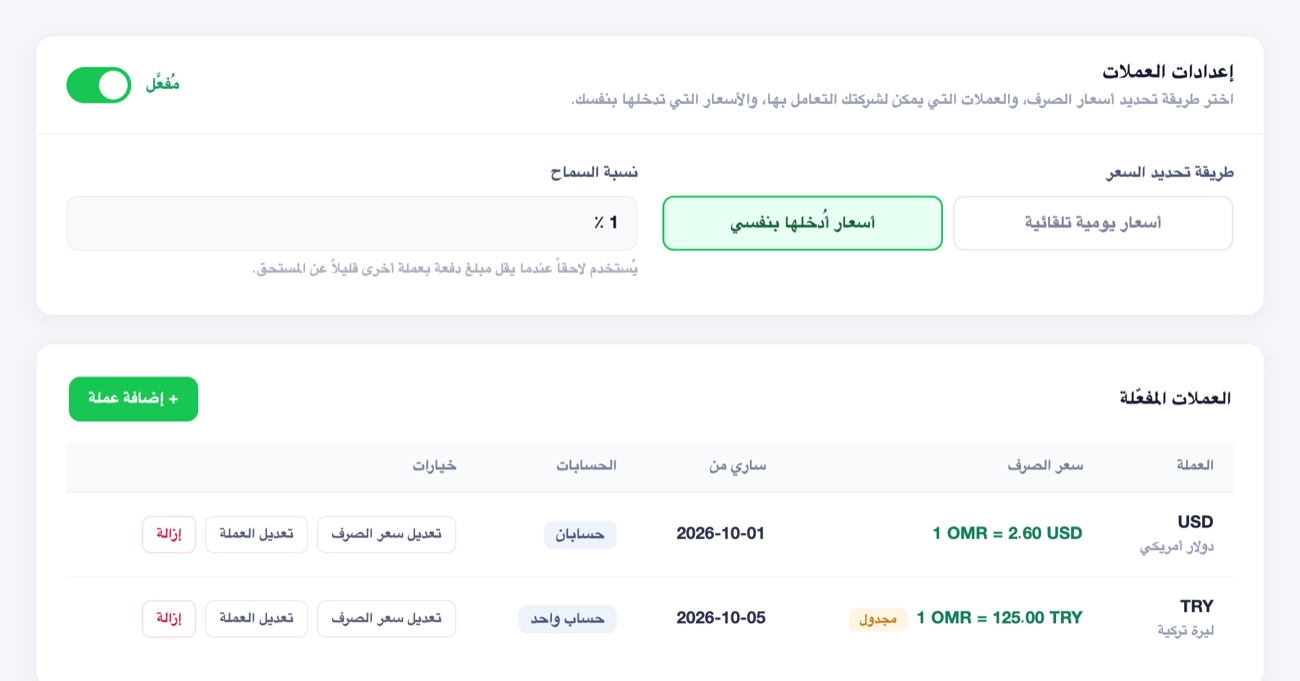
Open Settings → Currency Settings (dash.kira-app.com/admin/settings/fx), then switch "Multi-currency" on. After that:
- Choose the rate mode: "Automatic daily rates" or "Rates I enter myself".
- Add the currencies you deal in and set each one's exchange rate against your base currency.
- Set a tolerance (optional) to absorb small rounding differences.
The table shows each enabled currency with its current rate, its effective date and the number of accounts holding it, with "Edit rate", "Edit currency" and "Remove" actions per currency.
Step 2: Create a Cash Box or Bank Account and Set Its Currency
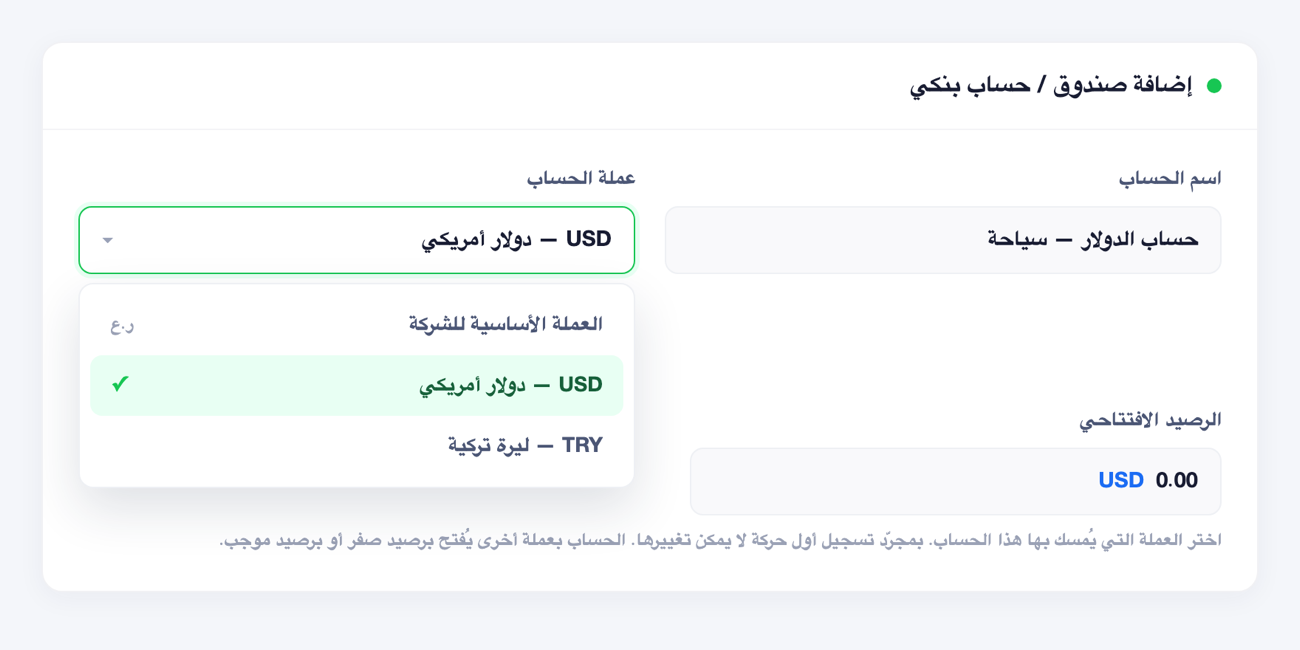
When you add a cash box or bank account, you'll find an "Account currency" field — pick the currency this account holds (or "Company base currency"). An account in another currency opens at a zero or positive balance.
Step 3: Record Operations and Payments in the Box's Currency
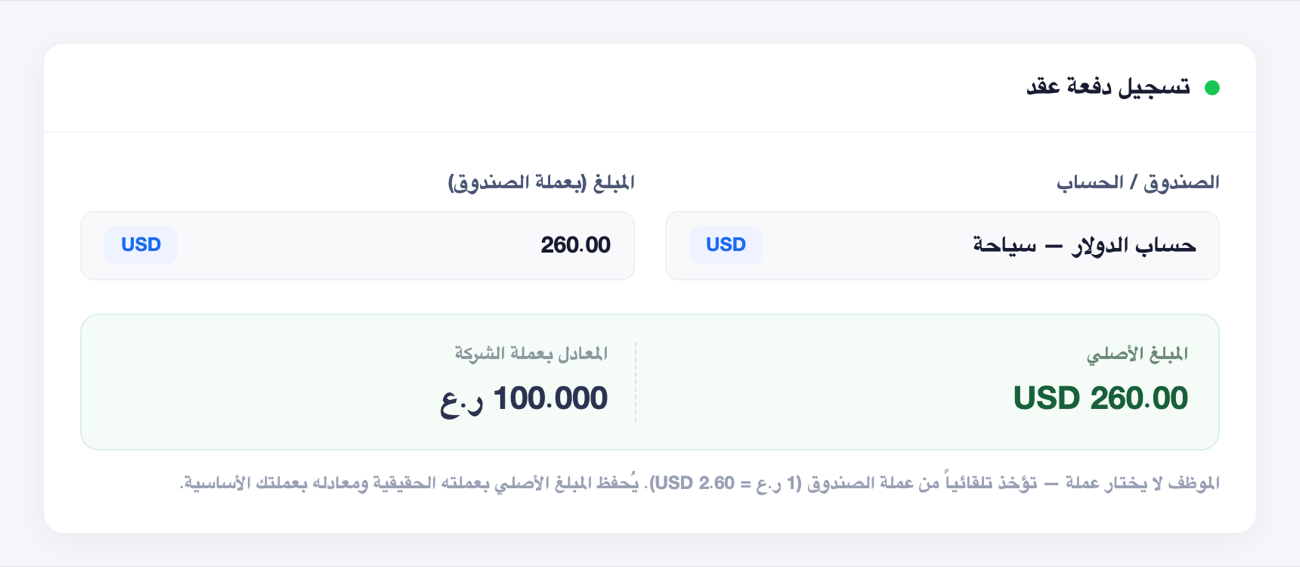
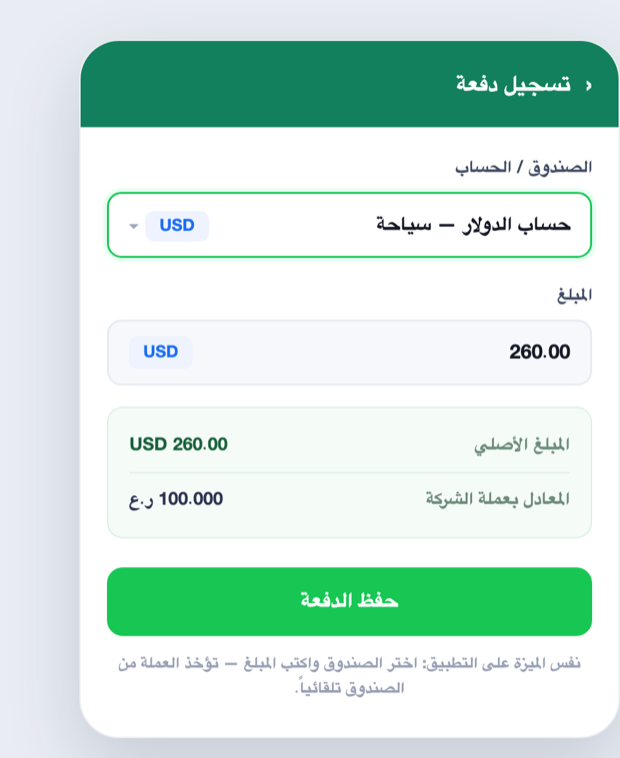
When you record a contract payment, a financial entry or maintenance, just pick the box and type the amount — the currency is taken from the box automatically. The system saves the original amount in its currency and its equivalent in your base currency, showing both together transparently.
Step 4: Transfer Between Two Boxes of Different Currencies
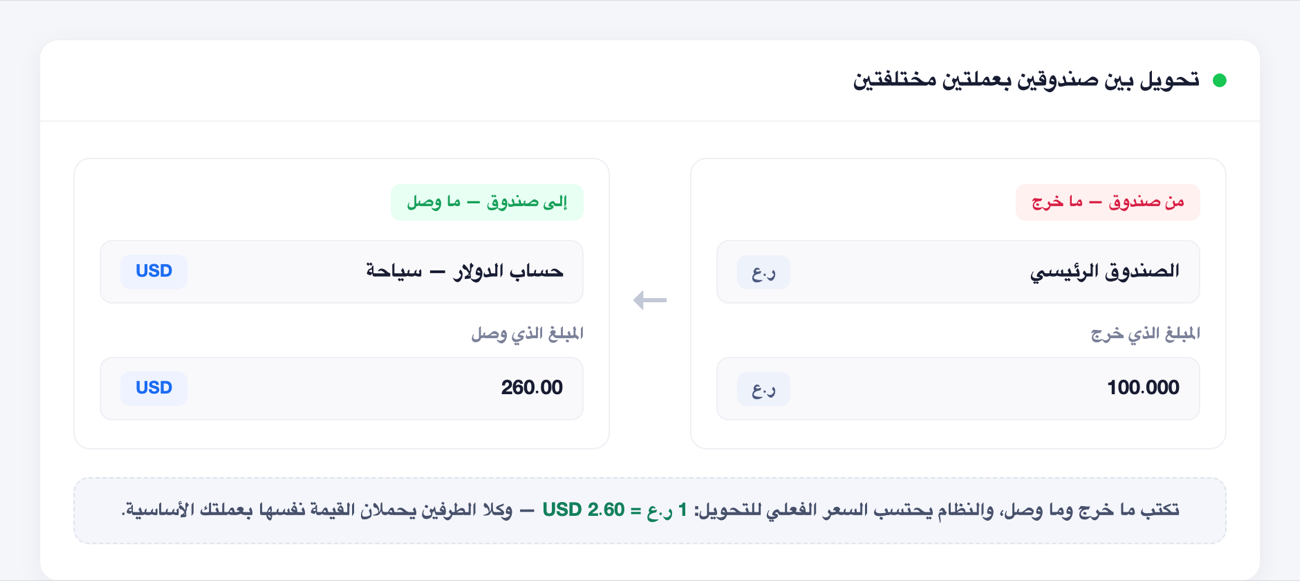
To transfer between one box and another in a different currency, you simply type what left the first box and what arrived in the second — the system computes the actual transfer rate from that pair, and both legs stay equal in your base currency.
On the Mobile App
The feature works the same way in the KIRA app: pick the box and type the amount, and the currency is taken from the box while the original amount and its base-currency equivalent are shown. Recording payments, financial operations and maintenance in the box's currency is available directly from the app.
Note: creating boxes and setting their currencies, transferring between boxes, and the currency settings are managed from the web dashboard.
Important Rules
- Your base currency and existing data don't change — the feature sits on top of your current accounts, and your company turns it on itself.
- Each box's balance is in its real currency, always alongside the base-currency equivalent in consolidated reports.
- Small exchange-rate differences are handled automatically within the tolerance you set, so contracts stay balanced.
- Refunds go back in the currency they were paid in.
- The feature can't be turned off while you still have a box or account holding a non-base currency — remove the currency from those accounts first.
FAQ
Does staff pick the currency on each operation?
No. The currency is taken from the box they choose, so there's no room for error or guessing.
Are my reports and base currency affected?
No. Reports stay consolidated in your base currency, and the base currency and existing data are unchanged. The feature is an add-on you enable when you need it.
What if a transferred amount is slightly under what's due because of the exchange rate?
The system absorbs the small difference automatically within the tolerance you set, so the contract closes balanced.
Can I do everything from the app?
Recording payments, operations and maintenance in the box's currency is available from the app. Creating boxes and setting their currencies, transferring between them, and the currency settings are managed from the web dashboard.
For more on managing accounts and cash boxes, see the Accounting Guide.