Getting Started 2/6 — Your Company Identity and Settings
Your trade name, logo, stamp, signature and contract terms — set once in Settings, and they appear automatically on every contract, invoice and WhatsApp message.
🚀 Getting Started Series — Part 2 of 6 · Stage: Setup · Full series index
What you will learn
- Set the company identity: trade name, email, address and tax identity.
- Upload the logo, document Header/Footer, stamp and global signature.
- Where contract terms live and who can edit the identity.
Open the Settings page
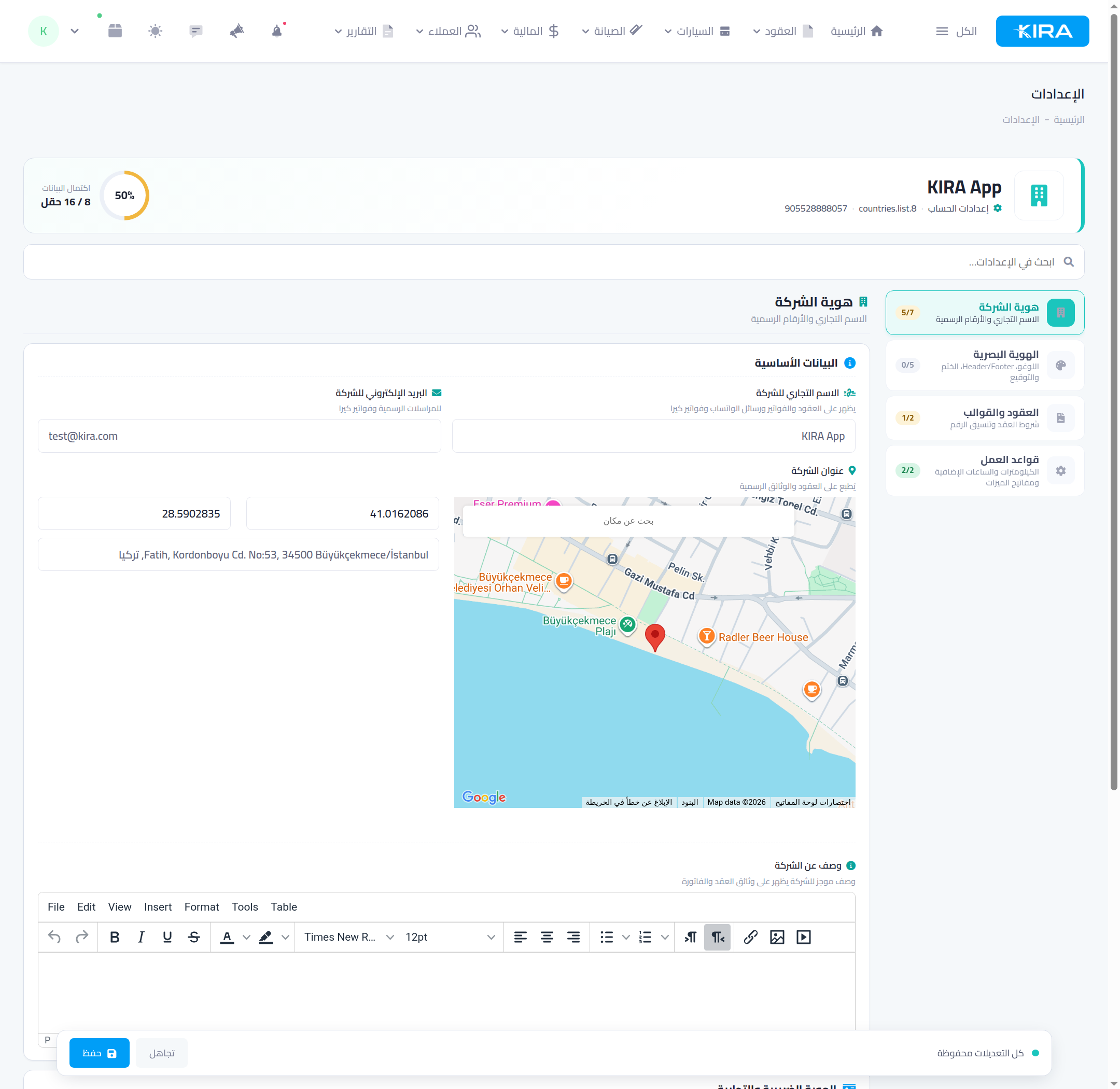
From the menu go to “Settings”. Four sections sit in the sidebar with a data-completion ring showing how many fields you've filled:
- Company identity — trade name and official numbers.
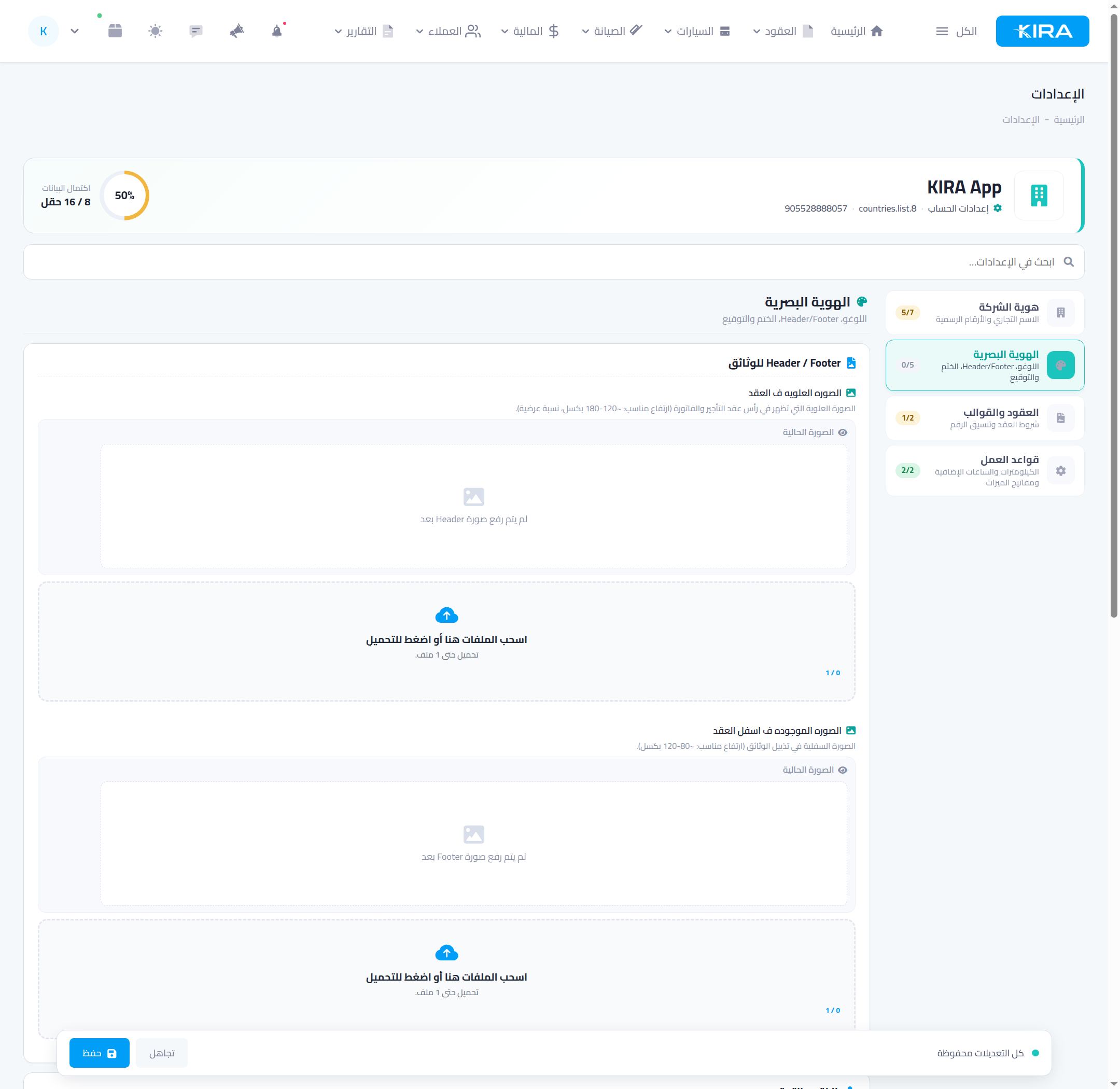
- Visual identity — logo, Header/Footer, stamp and signature.
- Contracts & templates — contract terms and numbering.
- Business rules — kilometres, extra hours and feature switches.
Section 1: Company identity
- Trade name: appears on contracts, invoices, WhatsApp messages and KIRA invoices — match your registration.
- Email for official correspondence, and the company address pinned on the map.
- Company description printed on contract and invoice documents.
Under “Tax & commercial identity”: commercial register, VAT number, and the “enable VAT” switch with the tax percentage — once on, tax is computed automatically on every new contract.
Section 2: Visual identity
- Company logo: shown on your document headers.
- Contract Header image and Footer image: your full letterhead at the top and bottom of contracts and invoices.
- Company stamp and global signature: printed on the e-contract, receipt vouchers and police letters.
Contract terms
In “Contracts & templates”, write your rental terms and conditions once — they render on page two of every e-contract, acknowledged by the customer's signature. Write them in Arabic and English if you serve foreign customers.
Who can edit the identity?
Identity data (name, email, logo…) is protected by a dedicated permission: “edit company identity”. The owner always has it and can delegate it to a trusted employee — other staff see the fields read-only.
Common mistakes
- Enabling VAT without a registration number: fill the VAT number with the percentage so your tax details print correctly.
- A low-quality logo: upload a high-resolution image with a transparent background — it appears on every official document.
- Forgetting to save: press Save after each change and watch for the “all changes saved” indicator.
⬅ Next in the series: Part 3: Create Your Branches
Previous: Part 1 — A Tour of Your Dashboard · Series index